
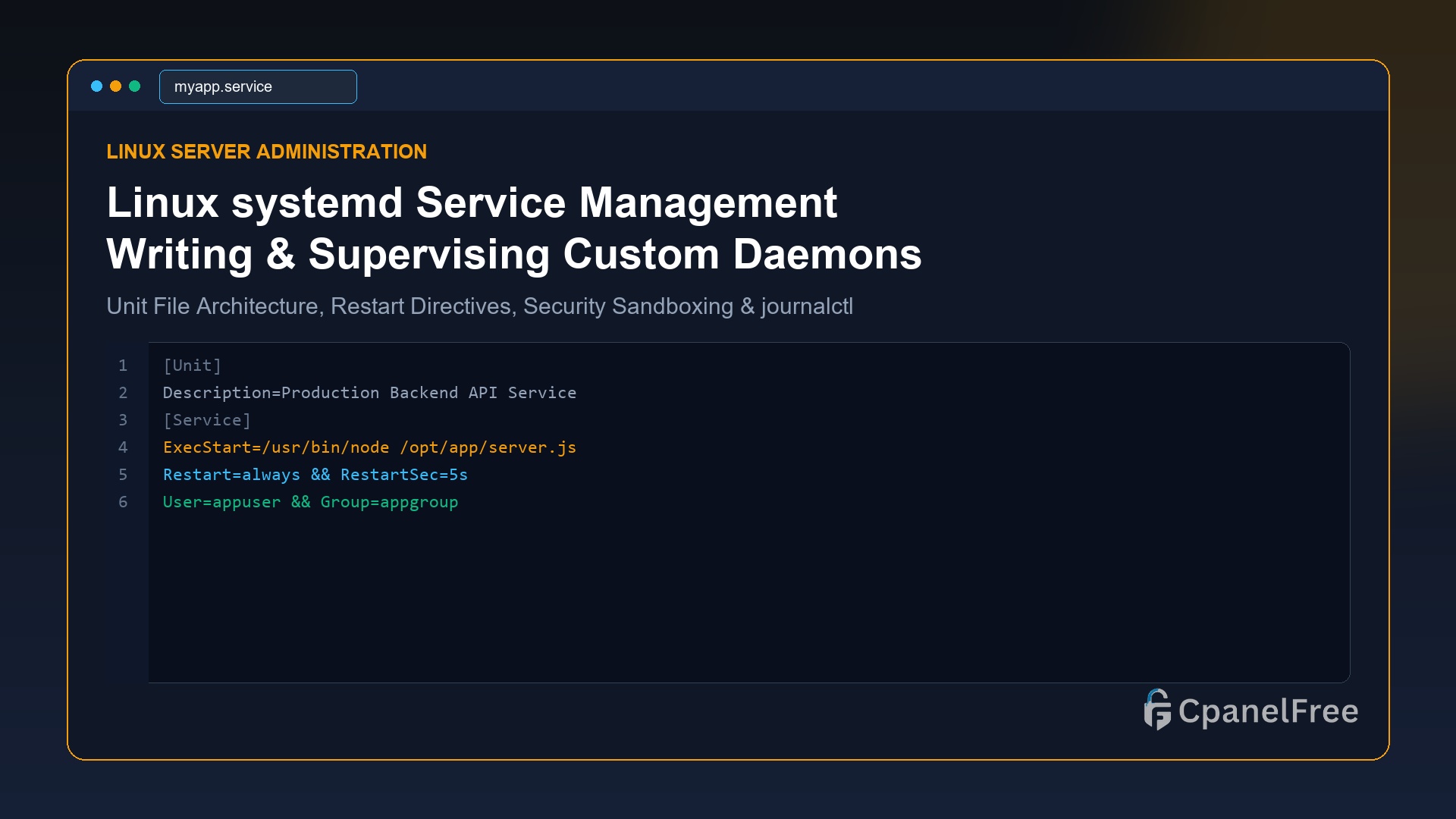
To create a persistent background daemon on modern Linux (Ubuntu/Debian/RHEL), create a unit file at /etc/systemd/system/yourservice.service. Define [Unit] for metadata and dependencies, [Service] with ExecStart=/path/to/binary, Restart=always, and an isolated User=appuser, followed by [Install] with WantedBy=multi-user.target. Run sudo systemctl daemon-reload, then activate it using sudo systemctl enable --now yourservice.
Why systemd Is the Backbone of Production Linux Servers
In modern Linux operating systems (Ubuntu 24.04/22.04 LTS, Debian 12, Rocky Linux, and AlmaLinux), systemd serves as the initialization system (PID 1) responsible for bootstrapping user space and managing all background services, sockets, timers, and hardware events. Earlier init systems like SysVinit and Upstart relied on brittle bash scripts prone to zombie process leaks and unhandled application crashes.
When running custom web services—such as Node.js Express servers, Python FastAPI daemons, Golang microservices, or custom backup scripts—running them inside detached screen or tmux sessions is a critical operational anti-pattern. If the server reboots or encounters an out-of-memory exception, the process vanishes silently.
By defining a native systemd service unit, you unlock automatic process supervision, sub-second failure auto-recovery, centralized journal logging, sandboxed security capabilities, and seamless integration with Linux startup targets.
Step 1: Anatomy of a Production systemd Unit File
Unit configuration files are stored in /etc/systemd/system/. Let us construct a complete, hardened production service file for a web application daemon:
# Open new service unit file
sudo nano /etc/systemd/system/myapi.service
Paste the following complete configuration:
[Unit]
Description=Production API Microservice Daemon
Documentation=https://docs.yourcompany.com
After=network.target network-online.target
Wants=network-online.target

[Service]
Type=simple
User=apiuser
Group=apiuser
WorkingDirectory=/opt/myapi
ExecStart=/opt/myapi/bin/api-server --config=/etc/myapi/config.json
ExecReload=/bin/kill -HUP $MAINPID

# Process Restart & Recovery Policies
Restart=always
RestartSec=5s
StartLimitIntervalSec=60s
StartLimitBurst=5

# Environment Configuration
Environment="NODE_ENV=production" "PORT=3000"
EnvironmentFile=-/etc/myapi/secrets.env

# Hardened Security & Isolation Directives
ProtectSystem=full
ProtectHome=true
NoNewPrivileges=true
PrivateTmp=true

# Resource Quotas & Limits
LimitNOFILE=65535
MemoryMax=1G

[Install]
WantedBy=multi-user.target
Step 2: Breakdown of Critical Directives
Type=simple: The default service type where the process launched inExecStartis the main daemon. For processes that fork background workers, useType=forking.After=network-online.target: Prevents the service from starting before the network stack has acquired an active IP address.Restart=always: Automatically revives the process if it terminates normally, crashes with an exit code, or is killed by the OOM reaper.RestartSec=5s: Waits 5 seconds before attempting to relaunch, preventing continuous restart loops from thrashing system CPU.EnvironmentFile=-/etc/...: Loads environment variables from an external file. The leading hyphen-instructs systemd not to fail if the file is temporarily missing.LimitNOFILE=65535: Raises the maximum number of open file descriptors, preventing “Too many open files” errors under heavy socket concurrency.
Step 3: Activating, Reloading & Inspecting the Daemon
Whenever you create or modify a .service file, you must instruct systemd to rescan the unit directory on disk:
# Rescan systemd unit directory
sudo systemctl daemon-reload

# Enable service to launch automatically on server boot
sudo systemctl enable myapi.service

# Start the service immediately
sudo systemctl start myapi.service

# Check live operational telemetry and status
sudo systemctl status myapi.service
A healthy service will report Active: active (running) along with the main Process ID (PID), memory consumption, and recent log outputs.
Step 4: Monitoring Logs with journalctl
systemd routes all stdout and stderr streams directly into the binary systemd-journald daemon. This eliminates the need for applications to manage their own rolling text log files:
# Stream live log output in real-time (like tail -f)
sudo journalctl -u myapi.service -f

# View logs from the current server boot only
sudo journalctl -u myapi.service -b

# Filter logs from the past 2 hours
sudo journalctl -u myapi.service --since "2 hours ago"

# View only error-level messages
sudo journalctl -u myapi.service -p err..emerg
Step 5: Operational Comparison: systemd vs PM2 vs Supervisord
| Management Engine | Language Support | Boot Integration | Memory Footprint | Kernel Sandboxing |
|---|---|---|---|---|
| systemd | Universal (Any binary) | Native Kernel (PID 1) | 0 MB (Built-in) | Full cgroups support |
| PM2 | Node.js / Python | Requires startup hook | ~60 MB to 120 MB | No |
| Supervisord | Universal | Separate daemon | ~35 MB | No |
Frequently Asked Questions (FAQ)
What is the difference between systemctl restart and systemctl reload?
systemctl restart terminates the process completely (SIGTERM/SIGKILL) and starts a new instance, causing a brief momentary connection reset. systemctl reload sends a signal (typically SIGHUP) to the running process instructing it to reload its configuration files from disk without dropping active client connections.
Why does my service say “code=exited, status=203/EXEC”?
Error 203/EXEC almost always indicates that the path specified in ExecStart is incorrect, the binary does not have executable permissions (chmod +x), or the specified User lacks read and execute rights to the target directory.
Where should I put custom scripts: /etc/systemd/system or /lib/systemd/system?
Always place custom user-defined services in /etc/systemd/system/. The /lib/systemd/system/ directory is reserved for packages installed by the package manager (APT/RPM) and can be overwritten during routine system updates.
🔗 Recommended Related Technical Guides
Deploy Persistent Daemons on High-Performance Cloud VPS
Enjoy uninterrupted service uptime with guaranteed CPU resources, low-latency NVMe drives, and full root access on CpanelFree.