
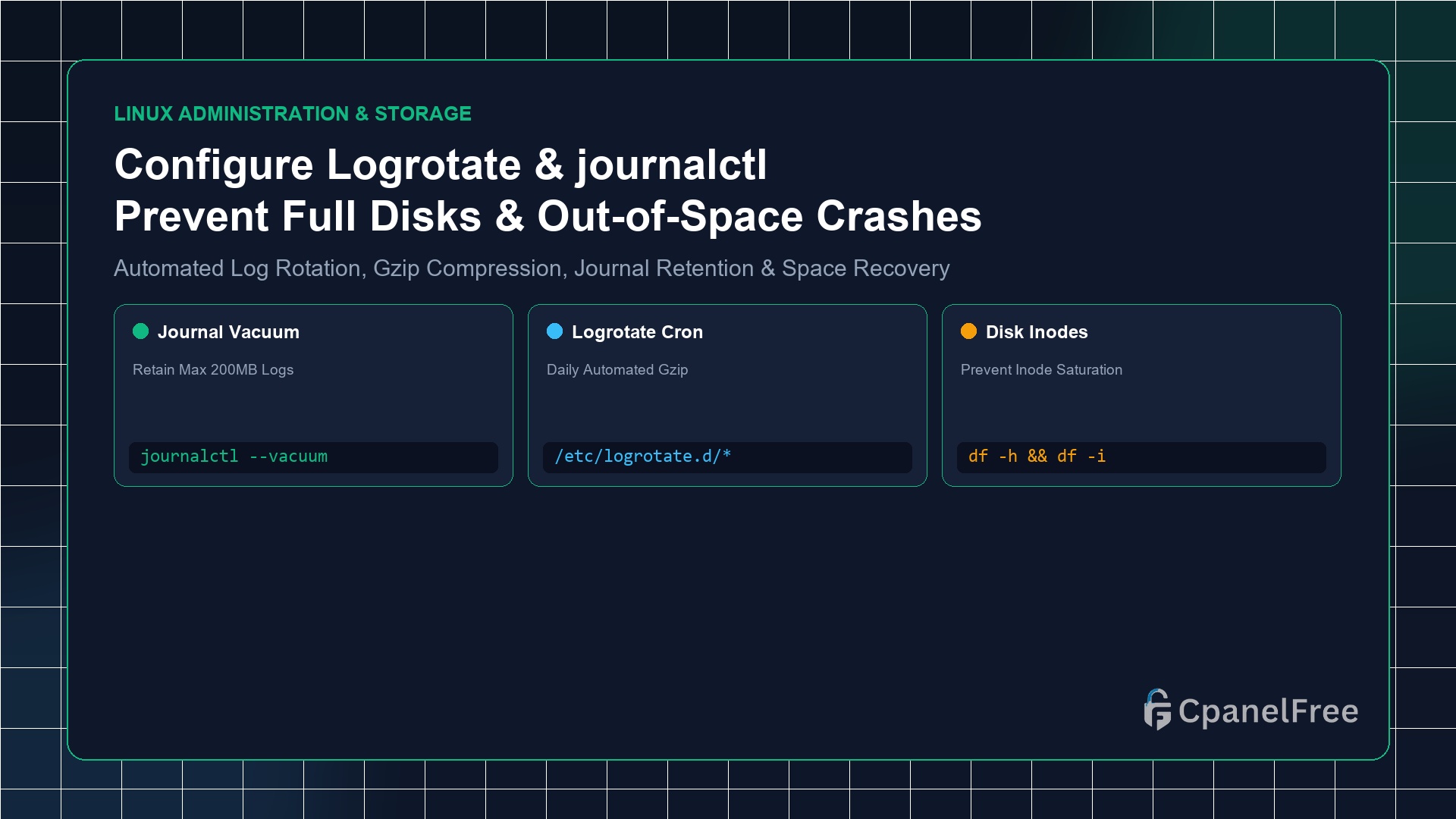
To immediately reclaim disk space from bloated logs on Linux, vacuum the systemd journal using sudo journalctl --vacuum-size=200M. Then, cap future growth permanently by setting SystemMaxUse=250M in /etc/systemd/journald.conf and restarting with sudo systemctl restart systemd-journald. For application logs in /var/log/, create a rule in /etc/logrotate.d/myapp specifying daily, rotate 7, compress, delaycompress, and copytruncate.
The Silent Server Killer: How Unchecked Logs Crash Production Applications
One of the most frequent causes of sudden web server downtime, MySQL database corruption, and crashed Nginx instances is running out of disk space (No space left on device). On a budget cloud VPS with 20GB to 50GB of NVMe disk storage, chatty web servers, security scanners, and container outputs can easily generate gigabytes of log entries every single week.
When the root partition reaches 100% capacity, MySQL cannot allocate temporary tables, PHP cannot write session files, and SSH login attempts may fail because PAM cannot create session tokens. Even worse, if millions of tiny log files are created, the filesystem can exhaust available inodes even when physical gigabytes appear free.
By pairing logrotate (for file-based application logs) with systemd-journald retention caps (for binary system logs), you ensure a self-cleaning server that maintains predictable, fixed disk usage indefinitely.
Step 1: Emergency Diagnosis: Finding What Is Consuming Your Disk
When investigating high disk consumption, inspect both physical block storage and filesystem inode allocation:
# Check physical disk space usage
df -h /

# Check filesystem inode consumption
df -i /

# Identify the largest log files in /var/log
sudo du -ah /var/log | sort -rh | head -n 15
Step 2: Reclaiming Space from systemd journalctl
Modern Linux stores system daemon logs in binary format under /var/log/journal/. On high-traffic systems, this directory frequently balloons to 4GB or more.
# Check current disk space consumed by systemd journal
journalctl --disk-usage

# Immediately prune logs older than 7 days
sudo journalctl --vacuum-time=7d

# Or prune logs down to a strict size limit (e.g. 200 Megabytes)
sudo journalctl --vacuum-size=200M
To enforce this size cap permanently so logs never exceed your threshold again, edit the journal configuration:
sudo nano /etc/systemd/journald.confUncomment and configure the following directives:
[Journal]
Storage=persistent
SystemMaxUse=250M
SystemKeepFree=1G
MaxRetentionSec=1month
Apply the changes by restarting the journal daemon:
sudo systemctl restart systemd-journaldStep 3: Configuring Custom logrotate Rules for Applications
While systemd manages binary unit logs, web services like Nginx, Apache, Redis, and custom Python/Node applications write plain text files directly into /var/log/. logrotate runs automatically via a daily cron/timer job to compress and rotate these files.
Let us create an optimized rotation rule for a custom web application:
sudo nano /etc/logrotate.d/mywebappInsert the following production configuration:
/var/log/mywebapp/*.log {
    daily
    missingok
    rotate 14
    compress
    delaycompress
    notifempty
    create 0640 www-data adm
    sharedscripts
    copytruncate
}
Step 4: Understanding Critical logrotate Directives
| Directive | Operational Purpose & Effect |
|---|---|
daily / weekly |
Rotates the log file once every calendar day or week. |
rotate 14 |
Keeps 14 historical log files before deleting the oldest archive. |
compress & delaycompress |
Gzips rotated logs to save ~90% disk space; delays compression on the newest rotated file so active daemons can finish writing without errors. |
copytruncate |
Copies the active log and truncates it in place without closing the file handle. Essential for Node/Python apps that don’t support log reopen signals. |
missingok & notifempty |
Suppresses error alerts if the log file is missing, and skips rotation if the file is 0 bytes. |
Step 5: Testing & Forcing logrotate Execution
Do not wait until midnight to discover a syntax error in your logrotate configuration. Test it safely in debug mode:
# Perform dry-run dry debug test (no files changed)
sudo logrotate -d /etc/logrotate.d/mywebapp

# Force immediate execution of all logrotate rules
sudo logrotate -f /etc/logrotate.conf

# Verify compressed .gz files were successfully created
ls -lh /var/log/mywebapp/
Frequently Asked Questions (FAQ)
Why did my disk space not decrease after deleting a huge log file with rm?
In Linux, if an active process still holds an open file descriptor to a deleted file, the operating system retains the disk blocks until the process terminates. Run sudo lsof | grep deleted to find the offending process, and restart it (e.g. sudo systemctl restart nginx) to release the freed disk space.
How can I truncate a massive log file without deleting it or restarting the service?
Use shell truncation: sudo truncate -s 0 /var/log/bloated.log. This instantly zeroes out the file content while preserving the active file descriptor, preventing application crashes.
🔗 Recommended Related Technical Guides
Upgrade to High-Capacity NVMe Storage on CpanelFree
Never worry about disk exhaustion again. Scale your storage seamlessly with pure Enterprise NVMe disk arrays on CpanelFree Cloud VPS.