
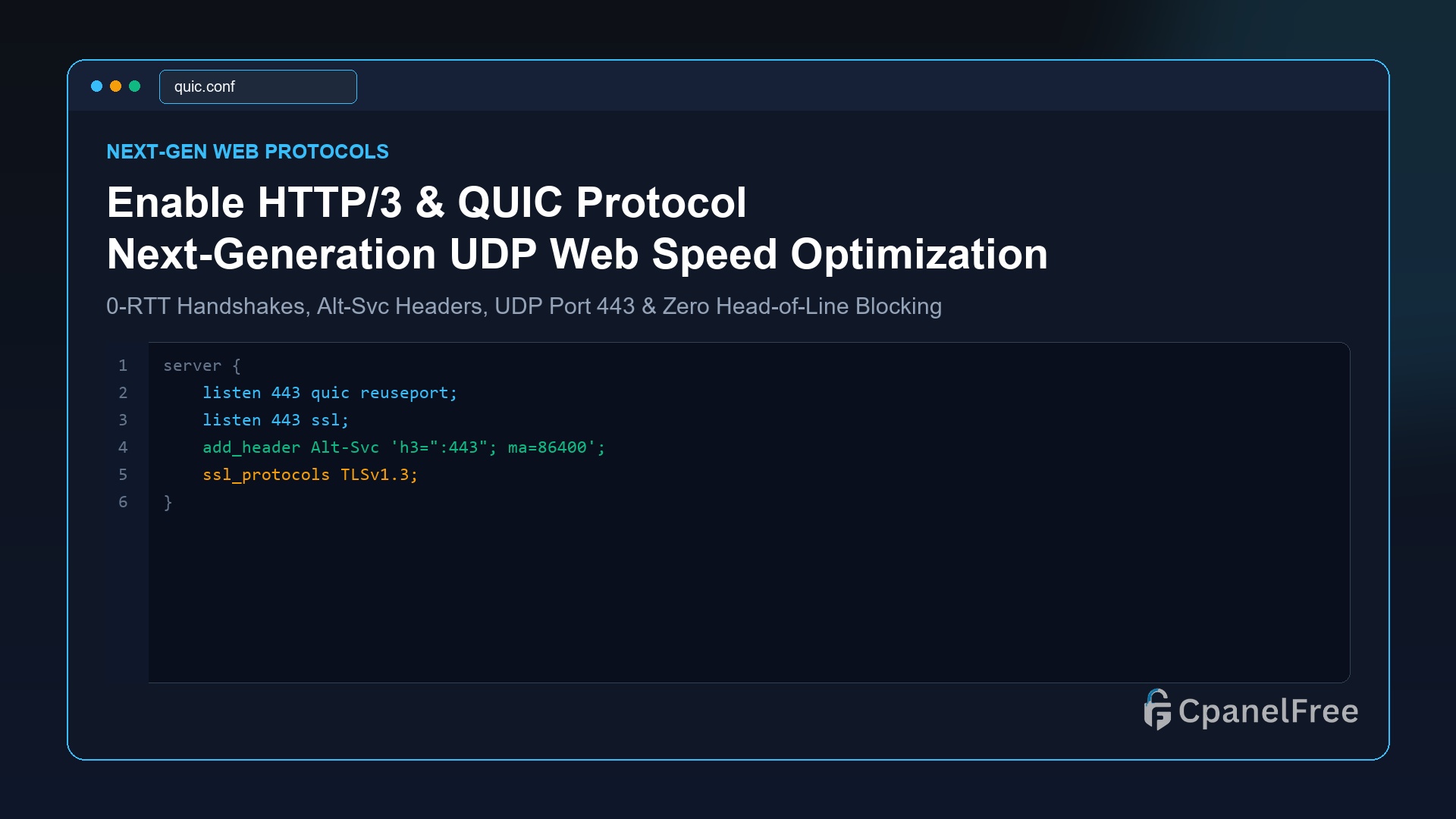
To activate HTTP/3 (QUIC) on Nginx (v1.25+): Add listen 443 quic reuseport; alongside standard SSL, enable ssl_protocols TLSv1.3;, and broadcast QUIC capability to browsers using add_header Alt-Svc 'h3=":443"; ma=86400';. Open UDP port 443 in your firewall (sudo ufw allow 443/udp). On OpenLiteSpeed, HTTP/3 is compiled natively and can be enabled with one click in the WebAdmin console under Listeners > SSL > Enable QUIC.
The Evolution from TCP to UDP: Why HTTP/3 Changes Everything
For over thirty years, the internet operated on TCP (Transmission Control Protocol). When HTTP/2 arrived, it introduced multiplexing—allowing hundreds of image and script requests to travel concurrently over a single TCP connection. However, this introduced a critical flaw: TCP Head-of-Line Blocking.
Because TCP guarantees byte-ordered delivery, if a single packet is dropped (common on mobile 4G/5G connections or switching from Wi-Fi to cellular data), the entire TCP connection stalls. All multiplexed streams freeze until that single lost packet is retransmitted.
HTTP/3 replaces TCP entirely with QUIC (Quick UDP Internet Connections), a modern transport protocol built on top of UDP. In HTTP/3:
- Independent Streams: Packet loss in one image stream does not block any other concurrent CSS, JS, or API streams.
- 0-RTT Handshakes: Clients connecting to returning websites establish encrypted TLS 1.3 connections with zero round-trip latency.
- Connection Migration: When a smartphone transitions from office Wi-Fi to 5G cellular, the QUIC Connection ID remains active—downloads continue without connection resets.
Method 1: Enabling HTTP/3 QUIC on Nginx (v1.25+)
Starting in mainline Nginx 1.25, HTTP/3 QUIC support is integrated into official repository packages:
# Verify your Nginx version is 1.25.0 or newer
nginx -v

# Inspect your server configuration
sudo nano /etc/nginx/sites-available/yourdomain.conf
Add the QUIC listener and the essential Alt-Svc advertisement header:
server {
    # 1. Listen on Port 443 for both standard TCP and UDP QUIC
    listen 443 ssl;
    listen 443 quic reuseport;
    listen [::]:443 ssl;
    listen [::]:443 quic reuseport;

    server_name yourdomain.com;

    # 2. Enforce TLS 1.3 (HTTP/3 fundamentally requires TLS 1.3)
    ssl_protocols TLSv1.3;
    ssl_certificate /etc/letsencrypt/live/yourdomain.com/fullchain.pem;
    ssl_certificate_key /etc/letsencrypt/live/yourdomain.com/privkey.pem;

    # 3. Inform Browsers to Upgrade to HTTP/3 on Port 443
    add_header Alt-Svc 'h3=":443"; ma=86400' always;

    # Optional: QUIC specific optimizations
    quic_retry on;
    ssl_early_data on;

    location / {
        try_files $uri $uri/ =404;
    }
}
CRITICAL FIREWALL STEP: Opening UDP Port 443
Most firewalls only permit TCP traffic on port 443. If UDP port 443 is blocked, browsers will fall back to legacy HTTP/2. Open UDP port 443 immediately:
# Allow UDP traffic on port 443 in UFW
sudo ufw allow 443/udp
sudo ufw reload

# Test Nginx syntax and reload
sudo nginx -t && sudo systemctl reload nginx
Method 2: Enabling HTTP/3 on OpenLiteSpeed & CyberPanel
OpenLiteSpeed was the first web server to deploy production HTTP/3 QUIC support out of the box. In CyberPanel or standalone OpenLiteSpeed:
- Log in to the OpenLiteSpeed WebAdmin console at
https://YOUR_SERVER_IP:7080. - Navigate to Server Configuration > Tuning > QUIC.
- Ensure Enable QUIC is set to
Yes. - Navigate to Listeners > SSL Listener (port 443), open the SSL tab, and set Allow QUIC to
Yes. - Perform a Graceful Restart. OpenLiteSpeed will begin serving HTTP/3 immediately.
Protocol Benchmark: HTTP/1.1 vs HTTP/2 vs HTTP/3
| Feature / Capability | HTTP/1.1 (Legacy) | HTTP/2 (2015) | HTTP/3 QUIC (Modern) |
|---|---|---|---|
| Transport Layer | TCP | TCP | UDP (QUIC) |
| Head-of-Line Blocking | HTTP level blocking | TCP level blocking | Zero Blocking |
| Connection Setup Latency | 2-3 RTTs | 1-2 RTTs | 0-RTT (Sub-millisecond) |
| Mobile Network Switching | Connection drops | Connection drops | Seamless Migration |
Verifying HTTP/3 Activation Live
Because web browsers must initially connect via HTTP/2 to discover the Alt-Svc header before upgrading subsequent requests to HTTP/3, you can verify your domain immediately using the free online tool at https://http3check.net/ or via terminal curl with HTTP/3 support:
# Check HTTP/3 response headers via curl
curl -I --http3 https://yourdomain.com/
Frequently Asked Questions (FAQ)
What happens if a visitor’s network blocks UDP port 443?
Browsers are engineered with seamless fallback mechanisms. If a corporate firewall or public Wi-Fi blocks UDP packets on port 443, the browser automatically falls back to standard HTTP/2 over TCP with zero interruption or error messages.
Does HTTP/3 improve Google Core Web Vitals?
Yes. Because HTTP/3 eliminates TCP connection handshake latency and head-of-line blocking, Largest Contentful Paint (LCP) and Interaction to Next Paint (INP) scores improve noticeably for mobile visitors.
🔗 Recommended Related Technical Guides
Deliver HTTP/3 Speeds with CpanelFree Cloud Hosting
Supercharge your mobile audience with native QUIC protocols, pure NVMe arrays, and free global edge delivery on CpanelFree.
HTTP/3 QUIC Debugging, UDP Tuning & Verification Guide
Because HTTP/3 operates over UDP rather than TCP, standard networking assumptions and diagnostic tools frequently yield false positives. Follow these verification and kernel tuning steps:
- Validate Inbound UDP Port 443: Confirm your cloud firewall or VPS security group explicitly permits incoming UDP packets on port 443. Many standard hosting profiles open only TCP 80 and TCP 443, silently blocking all QUIC handshakes and forcing clients to downgrade to HTTP/2.
- Inspect Alt-Svc Headers: Clients discover HTTP/3 capabilities via response headers. Verify your web server transmits the advertisement correctly using curl with header inspection:
curl -I https://yourdomain.com | grep -i alt-svc # Expected output: # alt-svc: h3=":443"; ma=86400, h3-29=":443"; ma=86400 - Kernel Socket Buffer Optimization: High-throughput QUIC connections require expanded UDP receive and send buffer spaces to prevent packet dropping under load. Append these parameters to
/etc/sysctl.conf:net.core.rmem_max = 7500000 net.core.wmem_max = 7500000 net.core.rmem_default = 262144 net.core.wmem_default = 262144Apply modifications immediately using
sudo sysctl -p. - Browser DevTools Confirmation: Open Chrome or Firefox DevTools, navigate to the Network tab, right-click the table header, and check the “Protocol” column. Active HTTP/3 sessions will display as
h3.