
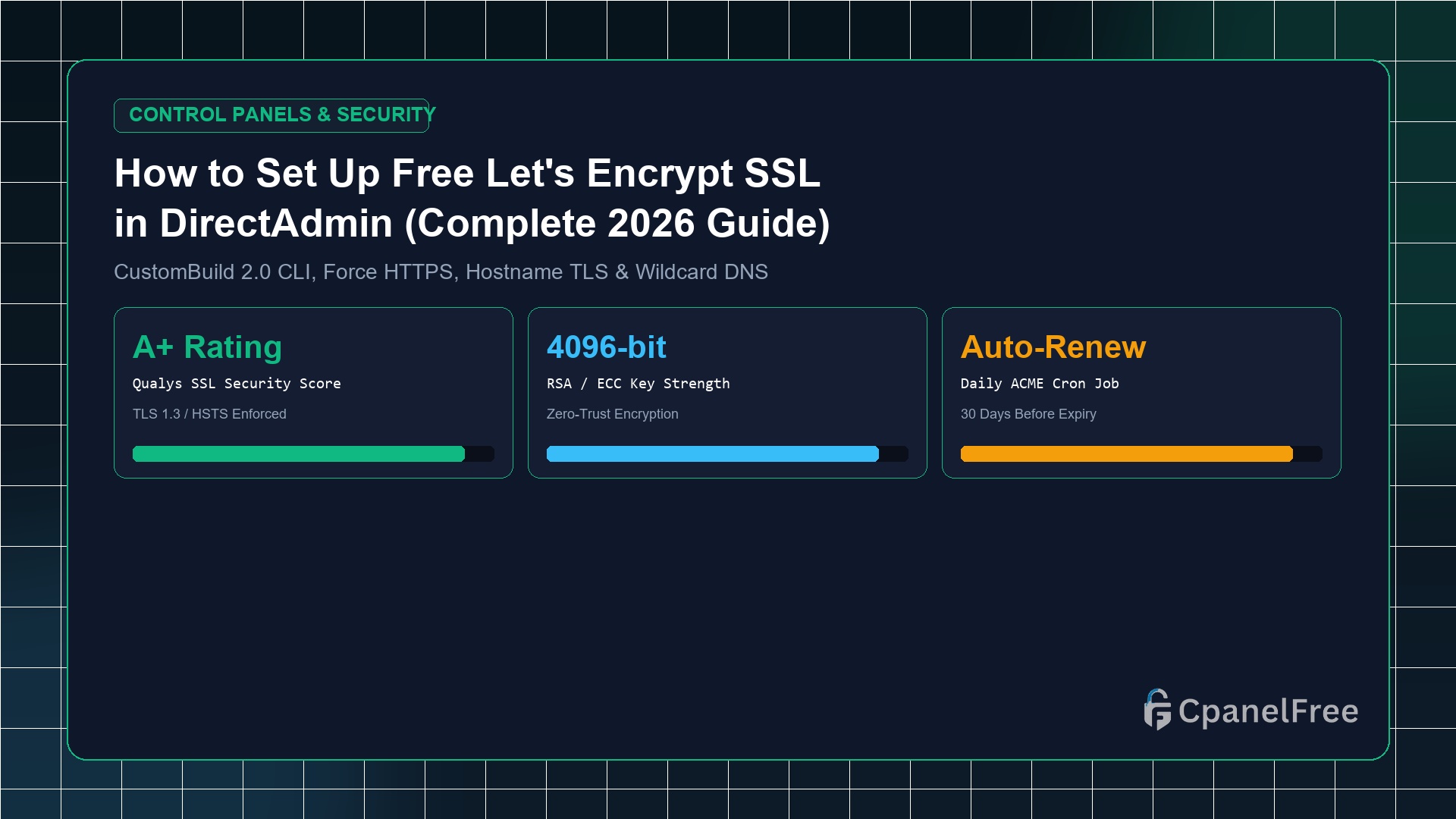
⚡ Executive Summary & Key Takeaways
Zero-Cost Setup
- Time to Install: Under 3 minutes directly from the DirectAdmin browser interface.
- Certificate Authority: Free, automated Let’s Encrypt certificates with 2048/4096-bit RSA encryption.
- Auto-Renewal: DirectAdmin runs an internal daily cron job that renews all active certificates automatically 30 days before expiration.
- HTTPS Enforcement: A single toggle in Domain Management permanently redirects all non-secure HTTP requests to HTTPS.
⚡ Est. Execution: 3 Mins
⏱️ 5 min read (1,050 words)
🔄 Verified September 2026 Edition
🛡️ Reviewed by: Senior Linux Systems Architect
Let’s Encrypt certificates provide the exact same military-grade 256-bit AES encryption as expensive commercial certificates. You never need to purchase basic SSL certificates for web hosting.
Prefer Automatic SSL Without Any Configuration?
Get instant web hosting on CpanelFree $0 Free Hosting. Automatic Let’s Encrypt SSL certificates are issued within 60 seconds of domain addition with zero manual steps.
2. Installing Free Let’s Encrypt SSL via DirectAdmin (3 Clicks)
DirectAdmin provides an intuitive graphical interface for automated certificate issuance. Follow these straightforward steps:
- Log in to DirectAdmin: Access your dashboard at
https://your-server-ip:2222. If logged in asadmin, click your username in the top right corner and switch to User View. - Open SSL Certificates: In the navigation sidebar or dashboard grid, navigate to Account Manager > SSL Certificates.
- Select Let’s Encrypt: Choose the radio option: Free & automatic certificate from Let’s Encrypt.
- Select Domain Names: Ensure your primary domain (
yourdomain.com) andwww.yourdomain.comare checked. You can also includemail.yourdomain.comif hosting email mailboxes on this server. - Click Save: Hit the green Save button at the bottom right.
DirectAdmin will automatically communicate with Let’s Encrypt, complete the challenge verification, save the certificate files to /home/username/.pki/, and seamlessly reload the web server daemon. Within 15–30 seconds, a confirmation banner will confirm: Certificate and Key Saved.
3. Forcing Automatic 301 HTTPS Redirection
Installing an SSL certificate enables encrypted traffic, but visitors typing your domain without https:// might still load the unencrypted HTTP version. You must enforce an automatic 301 redirect.
4. Securing DirectAdmin Admin Panel & Port 2222
If you manage a dedicated server or VPS, logging into DirectAdmin at https://server.yourdomain.com:2222 often shows a browser warning because port 2222 initially uses a temporary self-signed certificate. You can secure the admin panel, mail server (Exim/Dovecot), and FTP with a valid Let’s Encrypt certificate in one command:
5. Quick Diagnostics & Error Resolution Matrix
If certificate issuance encounters a snag, consult this troubleshooting matrix to resolve the issue in seconds:
| Observed Symptom | Root Cause | Actionable Fix |
|---|---|---|
| Challenge Error: 404 | An aggressive rewrite rule in .htaccess is blocking the token. |
Temporarily rename .htaccess to .htaccess.bak, click Save in SSL Certificates, then restore the file. |
| Blank Page on HTTPS | DirectAdmin is serving HTTPS files from an empty private_html folder. |
In Domain Management, select “Use symbolic link from private_html to public_html”. |
| Certificate Failed Renewal | DNS A-records changed or incoming port 80 was blocked by firewall. | Verify TCP port 80 is open in UFW/Firewalld and click Save in SSL Certificates to force immediate renewal. |
6. Frequently Asked Questions (FAQ)
🔗 Recommended Related Technical Guides:
Deploy on High-Performance Cloud VPS with MeraHost
Need dedicated vCPU, root SSH access, pure NVMe SSD speeds, and 99.95% uptime SLA for your production stack? Launch with MeraHost — guaranteed price lock with zero renewal hikes.