
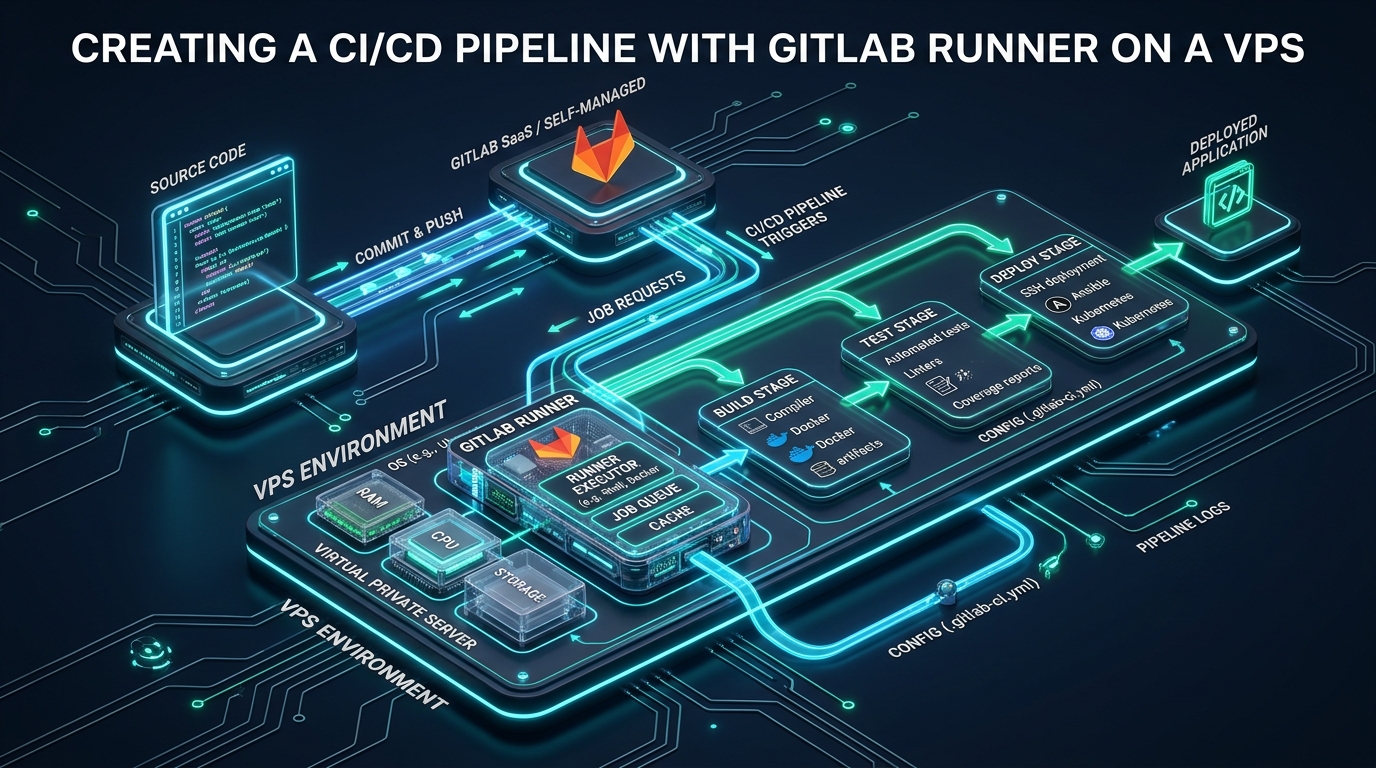
Scaling continuous delivery pipelines inevitably confronts engineering teams with a painful operational bottleneck: public shared runners plagued by unpredictable scheduling queues, rigid vCPU throttling, and ballooning monthly bills for compute minute overages. By provisioning a dedicated self-hosted GitLab Runner on an optimized Virtual Private Server (VPS), infrastructure architects regain absolute sovereignty over hardware allocations, eliminate build queue latency entirely, and accelerate build execution by up to 70% through persistent local NVMe caching. For developers and teams validating microservice prototypes or staging web applications, pairing agile staging environments on CpanelFree with an isolated VPS-based runner creates a reliable, zero-friction CI/CD ecosystem before rolling out to high-capacity clusters.
What Is the Optimal GitLab Runner Setup on a VPS?
Direct Answer: An enterprise-grade gitlab runner setup vps involves provisioning a Linux host with Docker, installing the official gitlab-runner repository, and registering the daemon with a scoped project authentication token. Configuring the Docker executor inside /etc/gitlab-runner/config.toml enables isolated job execution, while tuning local host volume caching and kernel sysctls delivers sub-second job dispatching with zero SaaS queue overhead.
Modern software engineering demands tight feedback loops. When developers push commits, waiting four to ten minutes in a shared SaaS runner queue derails engineering velocity, causes context-switching, and slows deployment cadences. A dedicated VPS acts as a private execution worker that polls your GitLab instance (whether GitLab.com or a self-hosted Community/Enterprise Edition instance) over an outbound TLS connection. Because the runner initiates all communication outbound, your build server requires no exposed public ingress ports, drastically reducing your attack surface while maximizing execution speed through dedicated local vCPU, RAM, and NVMe disk access.
Architectural Comparison: Shared GitLab SaaS vs. Dedicated VPS Runner
Before diving into configuration syntax, evaluating the architectural trade-offs between GitLab’s shared runner fleet and a dedicated VPS deployment clarifies why high-throughput engineering teams make the transition. The matrix below benchmarks key operational attributes across both topologies.
| Feature / Metric | Standard / Default | Tuned / Production |
|---|---|---|
| Build Queue Latency | 180s – 600s (Shared Pool) | < 2s (Instant Local Dispatch) |
| Executor Isolation | Shell (Host Contamination Risk) | Docker / Rootless DinD Containers |
| Cache Restoration Throughput | 12 – 25 MB/s (Remote S3 Object Store) | 1,800+ MB/s (Local NVMe Bind Mount) |
| Compute Resource Ceiling | Fixed 1-2 vCPU Quotas | Uncapped Host vCPU & RAM Bursting |
| Monthly CI Cost per 10k Mins | $100 – $250 / month | Fixed VPS Cost ($5 – $20 / month) |
While SaaS shared runners are convenient for small hobby projects, their remote caching mechanisms across object storage buckets introduce tremendous latency on dependencies like node_modules, Maven repositories, or Cargo target directories. On a VPS with local NVMe storage, cache directories can be mounted directly into build containers via local volume bindings, making cache checks instantaneous.
Step 1: Host System Preparation and Linux Kernel Hardening
Running continuous integration tasks generates significant disk I/O, rapid process spawning, container network namespace destruction, and high file descriptor consumption. Standard distribution defaults on Ubuntu or Debian will experience kernel connection tracking exhaustion or too many open files crashes under concurrent pipeline workloads. Apply the following kernel optimizations to prepare your VPS for production CI loads.
Create the configuration file at /etc/sysctl.d/99-gitlab-runner.conf:
# /etc/sysctl.d/99-gitlab-runner.conf
# Linux Kernel Performance & Stability Tuning for CI/CD Workloads

# File descriptor ceiling for concurrent container spawns and build tools
fs.file-max = 2097152
fs.inotify.max_user_watches = 524288
fs.inotify.max_user_instances = 8192

# Virtual memory tuning: prevent aggressive swapping during large compiler passes
vm.swappiness = 10
vm.dirty_ratio = 15
vm.dirty_background_ratio = 5
vm.max_map_count = 262144

# Network connection tracking and port reuse for container bridges
net.core.somaxconn = 65535
net.ipv4.ip_forward = 1
net.ipv4.tcp_tw_reuse = 1
net.ipv4.tcp_fin_timeout = 15
net.netfilter.nf_conntrack_max = 262144
net.ipv4.ip_local_port_range = 10240 65535
Load the sysctl rules immediately without requiring a system reboot:
sudo sysctl -p /etc/sysctl.d/99-gitlab-runner.confArchitecture Note: Enabling
net.ipv4.ip_forward = 1is mandatory for Docker bridge networking. If this parameter remains disabled, containers running inside your GitLab Runner will fail to resolve external DNS records or fetch upstream package dependencies during compilation.
Step 2: Installing Docker Engine and the GitLab Runner Daemon
To maintain container isolation, we configure the runner with the Docker executor. This guarantees that every pipeline job executes inside a clean, reproducible container image (e.g., node:20-alpine, golang:1.24, or python:3.12-slim) rather than executing directly on the host shell where environment pollution and security risks thrive.
Execute the commands below to install Docker Engine and the official GitLab Runner repository:
# Step A: Install Docker Engine Community Edition
sudo apt-get update && sudo apt-get install -y ca-certificates curl gnupg lsb-release
sudo install -m 0755 -d /etc/apt/keyrings
curl -fsSL https://download.docker.com/linux/ubuntu/gpg | sudo gpg --dearmor -o /etc/apt/keyrings/docker.gpg
sudo chmod a+r /etc/apt/keyrings/docker.gpg

echo "deb [arch=$(dpkg --print-architecture) signed-by=/etc/apt/keyrings/docker.gpg] https://download.docker.com/linux/ubuntu $(lsb_release -cs) stable" | sudo tee /etc/apt/sources.list.d/docker.list > /dev/null

sudo apt-get update && sudo apt-get install -y docker-ce docker-ce-cli containerd.io docker-buildx-plugin

# Step B: Install the Official GitLab Runner Package
curl -L "https://packages.gitlab.com/install/repositories/runner/gitlab-runner/script.deb.sh" | sudo bash
sudo apt-get install -y gitlab-runner

# Step C: Add gitlab-runner user to Docker group
sudo usermod -aG docker gitlab-runner
sudo systemctl enable --now gitlab-runner
Once installed, navigate to your GitLab project or group dashboard under Settings > CI/CD > Runners. Click New project runner, assign tags (such as vps-docker, production-ci), and copy the generated runner authentication token (formatted as glrt-...). Register the runner via the command line using non-interactive automation flags:
# Non-interactive GitLab Runner registration
sudo gitlab-runner register \
  --non-interactive \
  --url "https://gitlab.com/" \
  --token "glrt-YOUR_AUTHENTICATION_TOKEN_HERE" \
  --executor "docker" \
  --docker-image "docker:26.1-cli" \
  --description "vps-production-runner-01" \
  --docker-privileged="false" \
  --docker-pull-policy="if-not-present"
Step 3: Production Tuning for /etc/gitlab-runner/config.toml
The default configuration generated by gitlab-runner register is intentionally basic and unoptimized for heavy workloads. To achieve rapid pipeline throughput and safe resource boundaries, modify /etc/gitlab-runner/config.toml. This file controls global daemon concurrency, execution timeouts, persistent volume bindings, and pull policies.
Open /etc/gitlab-runner/config.toml and adjust it to reflect the enterprise configuration below:
# /etc/gitlab-runner/config.toml
# Production Tuned GitLab Runner Configuration

concurrent = 4
check_interval = 2
shutdown_timeout = 30
listen_address = "127.0.0.1:9252"

[session_server]
  session_timeout = 1800

[[runners]]
  name = "vps-production-runner-01"
  url = "https://gitlab.com/"
  id = 142095
  token = "glrt-YOUR_AUTHENTICATION_TOKEN_HERE"
  token_obtained_at = 2026-03-15T08:00:00Z
  token_expires_at = 0001-01-01T00:00:00Z
  executor = "docker"
  output_limit = 8192

  [runners.custom_build_dir]
  [runners.cache]
    MaxUploadedArchiveSize = 1048576000
    [runners.cache.shared]

  [runners.docker]
    tls_verify = false
    image = "docker:26.1-cli"
    privileged = false
    disable_entrypoint_overwrite = false
    oom_kill_disable = false
    disable_cache = false
    volumes = [
      "/var/run/docker.sock:/var/run/docker.sock",
      "/cache",
      "/opt/ci-cache/npm:/root/.npm:rw",
      "/opt/ci-cache/cargo:/usr/local/cargo/registry:rw"
    ]
    shm_size = 2147483648
    pull_policy = ["if-not-present"]
    network_mode = "bridge"
Architecture Note: Notice the
pull_policy = ["if-not-present"]and the shared host volumes in/opt/ci-cache/. By caching package directories across jobs and instructing Docker to reuse local images instead of querying remote registries on every step, pipeline execution times decrease from minutes down to seconds.
Ensure the host caching directory exists with proper permissions, and restart the runner service to apply the configuration:
sudo mkdir -p /opt/ci-cache/npm /opt/ci-cache/cargo
sudo chmod -R 777 /opt/ci-cache
sudo gitlab-runner restart
Step 4: Designing the Multi-Stage .gitlab-ci.yml Pipeline
With the runner daemon actively listening for jobs, configure the root .gitlab-ci.yml file in your repository. A production pipeline should segregate tasks into clean stages: code quality analysis, unit testing, container compilation, and continuous deployment. By utilizing explicit runner tags (vps-docker), jobs target your private VPS exclusively.
Below is a robust, production-tested pipeline demonstrating caching, automated artifact generation, and secure zero-downtime container publishing:
# .gitlab-ci.yml
# High-Efficiency Multi-Stage CI/CD Pipeline

stages:
  - lint
  - test
  - build
  - deploy

default:
  tags:
    - vps-docker

variables:
  DOCKER_IMAGE_NAME: "$CI_REGISTRY_IMAGE:$CI_COMMIT_SHORT_SHA"
  DOCKER_IMAGE_LATEST: "$CI_REGISTRY_IMAGE:latest"

# Stage 1: Static Code Analysis & Linting
lint:code:
  stage: lint
  image: node:20-alpine
  script:
    - npm ci --prefer-offline
    - npm run lint
  cache:
    key: "$CI_COMMIT_REF_SLUG-npm"
    paths:
      - node_modules/
    policy: pull-push

# Stage 2: Automated Unit and Integration Testing
test:unit:
  stage: test
  image: node:20-alpine
  script:
    - npm ci --prefer-offline
    - npm run test:coverage
  artifacts:
    name: "coverage-$CI_COMMIT_SHORT_SHA"
    expire_in: 7 days
    reports:
      junit: junit.xml
    paths:
      - coverage/

# Stage 3: Container Image Build & Push
build:container:
  stage: build
  image: docker:26.1-cli
  before_script:
    - echo "$CI_JOB_TOKEN" | docker login -u "$CI_REGISTRY_USER" --password-stdin "$CI_REGISTRY"
  script:
    - docker build --pull -t "$DOCKER_IMAGE_NAME" -t "$DOCKER_IMAGE_LATEST" .
    - docker push "$DOCKER_IMAGE_NAME"
    - docker push "$DOCKER_IMAGE_LATEST"

# Stage 4: Production Deployment via Secure SSH
deploy:production:
  stage: deploy
  image: alpine:latest
  rules:
    - if: '$CI_COMMIT_BRANCH == "main"'
      when: manual
  before_script:
    - apk add --no-cache openssh-client
    - eval $(ssh-agent -s)
    - echo "$DEPLOY_SSH_PRIVATE_KEY" | tr -d '\r' | ssh-add -
    - mkdir -p ~/.ssh && chmod 700 ~/.ssh
    - ssh-keyscan -H "$PRODUCTION_SERVER_IP" >> ~/.ssh/known_hosts
  script:
    - ssh "$PRODUCTION_DEPLOY_USER@$PRODUCTION_SERVER_IP" "docker pull $DOCKER_IMAGE_NAME && docker compose up -d --remove-orphans"
  environment:
    name: production
    url: https://example.com
When taking production builds from staging into live traffic, your underlying host infrastructure must deliver predictable execution speeds and unthrottled I/O. For web hosting and container workloads requiring bulletproof reliability, deploying on MeraHost Enterprise Cloud guarantees dedicated NVMe disk arrays, enterprise LiteSpeed performance, and a strict Same Renewal Price policy that shields your operational budget from surprise price increases.
Automated Maintenance: Pruning Docker Artifacts and Monitoring
Because CI/CD pipelines continuously pull intermediate base images and create build layers, an unmanaged Docker runner daemon will rapidly exhaust disk space within weeks. Implementing automated Docker garbage collection prevents catastrophic disk-full downtime.
Deploy a dedicated systemd timer and service to prune dangling images and volumes nightly at 02:00 UTC. Create the service unit at /etc/systemd/system/docker-ci-prune.service:
# /etc/systemd/system/docker-ci-prune.service
[Unit]
Description=Automated Docker Garbage Collection for GitLab Runner
After=docker.service
Requires=docker.service

[Service]
Type=oneshot
ExecStart=/usr/bin/docker system prune -af --filter "until=168h"
ExecStart=/usr/bin/docker volume prune -f --filter "label!=keep"
StandardOutput=journal
StandardError=journal
Next, pair this service with a matching timer at /etc/systemd/system/docker-ci-prune.timer:
# /etc/systemd/system/docker-ci-prune.timer
[Unit]
Description=Trigger Nightly Docker Cleanup for GitLab Runner

[Timer]
OnCalendar=*-*-* 02:00:00
Persistent=true

[Install]
WantedBy=timers.target
Enable and start the cleanup timer with systemctl:
sudo systemctl daemon-reload
sudo systemctl enable --now docker-ci-prune.timer
Architecture Note: In addition to automated pruning, the runner exports internal Prometheus metrics on port
9252as configured inconfig.toml. You can queryhttp://127.0.0.1:9252/metricsto inspect active worker allocations, job duration histograms, and pending failure tallies.
Frequently Asked Questions (FAQs)
Should I use the Shell executor or the Docker executor on my VPS?
The Docker executor is overwhelmingly recommended for production. The Shell executor executes build commands directly on the host operating system with the permissions of the gitlab-runner user, creating substantial security risks, file system contamination, and dependency drift between builds. The Docker executor encapsulates every pipeline job inside a clean, reproducible container, discarding runtime mutations when the container exits while allowing host volumes to preserve build caches safely.
How do I prevent Docker builds from exhausting the VPS disk space?
Disk exhaustion is typically caused by orphaned build layers and dangling intermediate images. To prevent this, deploy an automated systemd timer that runs docker system prune -af --filter "until=168h" nightly, which purges images and stopped containers older than 7 days without removing actively cached base images. Additionally, configure multi-stage Dockerfiles with --cache-from arguments in your CI scripts to reuse registry cache layers efficiently.
Can a single VPS run concurrent builds for multiple GitLab projects?
Yes. By increasing the concurrent = X directive in /etc/gitlab-runner/config.toml, a single VPS can execute multiple jobs concurrently across different projects. Each job runs inside its own isolated Docker container bridge network. As a rule of thumb, set your concurrency limit to (Total vCPU Cores * 2), provided your VPS has sufficient RAM (at least 2GB RAM per concurrent worker) to prevent out-of-memory kernel kills.
What security risks exist when mounting /var/run/docker.sock into the runner?
Mounting /var/run/docker.sock into a runner container gives any command executed within the container root-level control over the host’s Docker daemon, allowing privilege escalation. For private repositories managed by trusted engineering teams, socket binding offers significant speed advantages. However, for untrusted repositories or open-source forks, you should avoid socket binding and instead utilize Docker-in-Docker (DinD) with TLS or rootless build tools like Kaniko and Buildah.
Deploy Enterprise-Grade Production Infrastructure
Need guaranteed performance with zero price hikes? Host mission-critical workloads on MeraHost with pure Enterprise NVMe, LiteSpeed Web Server, and Same Renewal Price, Always (starting at ₹99/mo).