
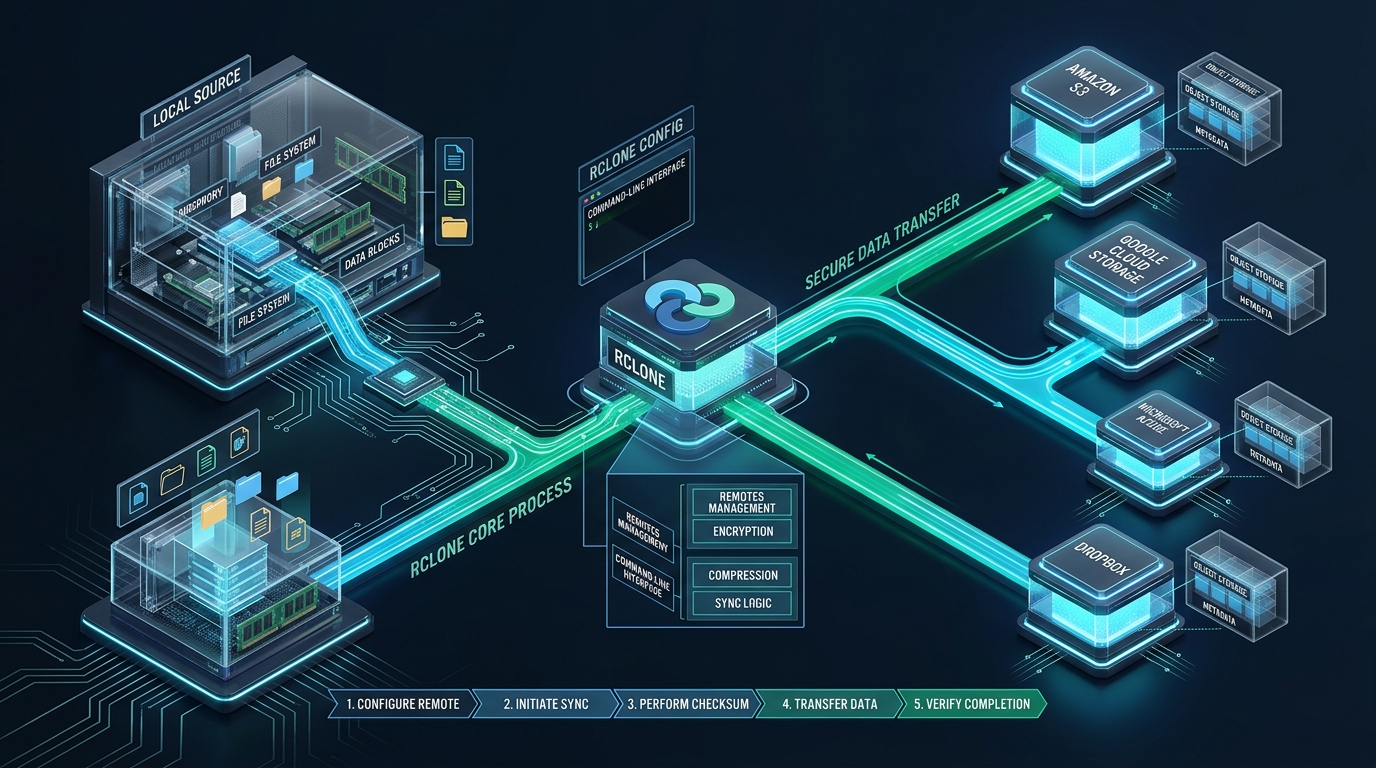
Managing offsite backups and continuous directory synchronization between on-premises Linux servers and multi-cloud object storage has traditionally been fraught with latency penalties, memory exhaustion, and complex proprietary SDKs. When standard POSIX tools like rsync falter across high-latency object APIs, systems administrators managing mission-critical staging nodes on CpanelFree turn to Rclone—a high-performance, open-source multi-cloud synchronizer engineered in Go to bridge POSIX filesystems with S3-compatible, blob, and distributed object architectures. By mastering Rclone’s concurrency model, memory buffering, and client-side encryption layers, engineering teams can eliminate backup bottlenecks and achieve deterministic, wire-speed replication across any cloud destination.
What is Rclone and How Does It Sync Files to Cloud Storage on Linux?
rclone sync <source> <remote:bucket> with tuned concurrency flags (--transfers, --checkers, and --fast-list), Linux sysadmins achieve parallel, checksum-verified file synchronization with native client-side encryption and automated systemd execution.Unlike traditional file transfer utilities designed strictly for POSIX-compliant remote filesystems via SSH or NFS, Rclone is designed specifically around the asynchronous, eventually consistent semantics of REST-based object storage APIs. When backing up dense web application directories, user uploads, or database dumps, Rclone abstracts API rate limits, chunked multipart uploads, pagination, and cryptographic verification into an intuitive, Unix-philosophical command interface.
The core synchronizing engine relies on four interrelated operational stages:
- Remote Enumeration & Tree Traversal: Rclone inspects the source directory and queries the target cloud bucket using optimized listing calls. With S3 and compatible storage engines, enabling
--fast-listbatches object lookups into memory, reducing billable Class-A listing operations by up to 90%. - Attribute & Hash Comparison: Rather than relying solely on file timestamps—which can drift across filesystems or be overwritten by cloud APIs—Rclone executes hash comparisons (MD5, SHA-1, or provider-specific etags) alongside modification time windows to detect genuine file deltas.
- Pipelined Concurrent Data Ingestion: Files requiring replication are segmented into configurable chunks and streamed through multi-threaded worker pools governed by
--transfersand--buffer-size. - Target State Alignment (Sync Semantics): Unlike an additive copy command, the
syncverb makes the remote destination strictly identical to the local directory, pruning deleted files on the destination or moving them into an archival directory when paired with--backup-dir.
Architecture Note: The
rclone synccommand is intrinsically destructive to files present on the remote destination that do not exist on the local source. In enterprise production workflows, never executerclone syncin automated scripts without the--backup-dirparameter to preserve orphaned files in a date-stamped rollback directory, and always perform dry runs using--dry-runduring initial verification.
Rclone Architecture: Default vs. Tuned Production Parameters
Out of the box, Rclone operates with conservative default parameters designed to prevent resource exhaustion on low-spec hardware or rate-limit penalties on free-tier cloud accounts. However, running default flags on modern gigabit or 10Gbps Linux servers leads to underutilized network pipes and prolonged backup windows. The comparison matrix below outlines the performance delta between default settings and a tuned enterprise configuration:
| Feature / Metric | Standard / Default | Tuned / Production |
|---|---|---|
Parallel Transfer Workers (--transfers) |
4 concurrent streams | 8 – 16 streams (bandwidth saturated) |
Listing API Optimization (--fast-list) |
Disabled (1 API call per directory level) | Enabled (Batched in RAM, 10x fewer API calls) |
Integrity Checking Concurrency (--checkers) |
8 scanner threads | 16 – 32 threads (eliminates crawl lag) |
Memory Buffer per Stream (--buffer-size) |
16MB per stream | 32MB – 64MB (tuned for network burst) |
Multipart S3 Chunk Size (--s3-chunk-size) |
5MB default chunk | 64MB – 128MB (optimal for multi-GB archives) |
| Destination Prune Protection | Permanent remote deletion | --backup-dir rolling date retention |
| Client-Side Zero-Knowledge Encryption | Plaintext payload & paths | AES-256-GCM / Poly1305 crypt overlay |
Step-by-Step Installation and Backend Configuration
While most Linux distributions package Rclone within their standard repositories (e.g., apt install rclone on Debian/Ubuntu or dnf install rclone on RHEL/AlmaLinux), distribution repositories often lag several minor versions behind upstream. For mission-critical cloud sync operations, always install the official upstream binary to guarantee support for the latest cloud provider API updates and security patches.
Execute the official automated installation script with root privileges:
# Download and verify the official Rclone installation script
curl https://rclone.org/install.sh | sudo bash

# Verify installed binary version and capabilities
rclone version
While Rclone features an interactive wizard via rclone config, automated DevOps workflows and CI/CD pipelines require declarative, non-interactive configuration management. The Rclone configuration file is stored by default at ~/.config/rclone/rclone.conf or globally at /etc/rclone/rclone.conf.
Production Configuration File: S3 Endpoint and Encrypted Overlay
Below is a production-hardened declarative /etc/rclone/rclone.conf configuration demonstrating both an enterprise S3-compatible backend (compatible with AWS S3, Cloudflare R2, MinIO, or Wasabi) and a stacked crypt overlay that ensures zero-knowledge client-side encryption of all file contents and directory names before bytes leave your Linux server:
# /etc/rclone/rclone.conf
# Production Configuration for Enterprise S3 Object Storage + Crypt Overlay

[s3-production]
type = s3
provider = Cloudflare
access_key_id = 9b8a7c6d5e4f3a2b1c0d9e8f7a6b5c4d
secret_access_key = a1b2c3d4e5f60718293a4b5c6d7e8f90123456789abcdef0123456789abcdef
endpoint = https://<account-id>.r2.cloudflarestorage.com
acl = private
chunk_size = 64M
upload_concurrency = 8
storage_class = STANDARD
no_check_bucket = true

[s3-production-crypt]
type = crypt
remote = s3-production:prod-server-backups/enc-vault
filename_encryption = standard
directory_name_encryption = true
password = gY5mB9zP3qL7rV2xK8wT1jN4sF6hD0cA_obscured_key_here
password2 = sA9kL2xN8rT4jV1zP7mB3qD5hF0cG6wY_salt_key_here
Security Tip: To generate the obscured password strings for the crypt backend non-interactively in shell scripts, run
rclone obscure "YourSuperStrongPassword123!"and inject the resulting hash directly into your Ansible or Terraform configuration templates.
Automating Cloud Sync with Production Systemd Service and Timer
Running recurring background sync tasks through traditional crontab entries poses significant reliability risks: cron lacks native process isolation, does not prevent overlapping runs if a sync takes longer than expected, and offers poor observability into task failures. Deploying a dedicated systemd service and timer pair provides robust cgroup resource boundaries, journald structured logging, execution retries, and atomic concurrency locking.
Production Sync Runner Shell Script
Create the hardened execution runner script at /usr/local/bin/rclone-sync-runner.sh. This script employs flock to prevent overlapping synchronization runs and leverages date-stamped backup directories for seamless versioned retention:
#!/usr/bin/env bash
# /usr/local/bin/rclone-sync-runner.sh
# Enterprise Rclone Cloud Storage Synchronization Engine
set -euo pipefail

LOCK_FILE="/var/lock/rclone-cloud-sync.lock"
exec 200>"${LOCK_FILE}"
flock -n 200 || { echo "[ERROR] Another sync instance is already running. Exiting."; exit 1; }

SOURCE_DIR="/var/www/production-data"
REMOTE_TARGET="s3-production-crypt:/current"
BACKUP_HISTORICAL="s3-production-crypt:/archive/$(date +%Y-%m-%d_%H%M%S)"
LOG_FILE="/var/log/rclone/cloud-sync.log"

mkdir -p /var/log/rclone

echo "[$(date --iso-8601=seconds)] Starting enterprise cloud synchronization..." >> "${LOG_FILE}"

rclone sync "${SOURCE_DIR}" "${REMOTE_TARGET}" \
    --config="/etc/rclone/rclone.conf" \
    --backup-dir="${BACKUP_HISTORICAL}" \
    --fast-list \
    --transfers=8 \
    --checkers=16 \
    --buffer-size=32M \
    --s3-chunk-size=64M \
    --s3-upload-concurrency=4 \
    --checksum \
    --use-mtime \
    --modify-window=1s \
    --stats=30s \
    --stats-log-level=NOTICE \
    --log-file="${LOG_FILE}" \
    --log-level=INFO \
    --retries=3 \
    --retries-sleep=5s \
    --timeout=10m \
    --contimeout=30s

echo "[$(date --iso-8601=seconds)] Cloud synchronization completed successfully." >> "${LOG_FILE}"
Make the script executable and restrict access to the root user:
sudo chmod 700 /usr/local/bin/rclone-sync-runner.sh
sudo chown root:root /usr/local/bin/rclone-sync-runner.sh
Hardened Systemd Service Unit
Save the following service unit to /etc/systemd/system/rclone-sync.service. It enforces kernel sandboxing (ProtectSystem=strict, PrivateTmp=yes) and bounds memory and CPU consumption to safeguard colocated applications:
# /etc/systemd/system/rclone-sync.service
[Unit]
Description=Automated Rclone Cloud Storage Synchronization
Documentation=man:rclone(1) https://rclone.org
After=network-online.target
Wants=network-online.target

[Service]
Type=oneshot
User=root
Group=root
ExecStart=/usr/local/bin/rclone-sync-runner.sh

# Resource Containment (cgroups v2)
MemoryMax=2G
CPUQuota=200%
IOWeight=100

# Security Sandboxing & Isolation
NoNewPrivileges=yes
ProtectSystem=strict
ProtectHome=read-only
ReadWritePaths=/var/log/rclone /var/lock /tmp
PrivateTmp=yes
PrivateDevices=yes
ProtectKernelTunables=yes
ProtectControlGroups=yes
CapabilityBoundingSet=CAP_DAC_READ_SEARCH

# Exit code handling
Restart=no
TimeoutStartSec=4h
Systemd Timer Unit
Create the accompanying timer at /etc/systemd/system/rclone-sync.timer. The timer schedules synchronization every night at 02:30 AM with a randomized 15-minute jitter window to prevent network spikes across multi-node clusters:
# /etc/systemd/system/rclone-sync.timer
[Unit]
Description=Nightly Trigger for Rclone Cloud Synchronization
RefuseManualStart=no
RefuseManualStop=no

[Timer]
OnCalendar=*-*-* 02:30:00
RandomizedDelaySec=900
Persistent=true
Unit=rclone-sync.service

[Install]
WantedBy=timers.target
Enable and start the timer using systemctl:
# Reload systemd manager configuration
sudo systemctl daemon-reload

# Enable and start the sync timer
sudo systemctl enable --now rclone-sync.timer

# Inspect timer status and next scheduled execution
systemctl list-timers rclone-sync.timer
Fine-Tuning Bandwidth, Network Polling, and I/O Bottlenecks
Synchronizing terabytes of data over public cloud links requires granular control over upstream utilization. Left unrestricted, Rclone will saturate the network interface, potentially degrading incoming customer HTTP traffic. You can implement dynamic rate-limiting schedules directly via the --bwlimit parameter:
# Throttle to 10MB/s during business hours (08:00 to 20:00), unthrottled overnight
rclone sync /local/path remote:bucket --bwlimit "08:00,10M 20:00,off"
In addition, when managing high-traffic web environments with intense disk activity, storage performance on the host node is the ultimate throughput determinant. If your server is running on slow mechanical disks or oversold multi-tenant clouds with shared I/O throttling, Rclone checksum calculations will stall your database read-ahead caches. For mission-critical production workloads, migrating your core application stack to MeraHost Enterprise Cloud guarantees dedicated Enterprise NVMe read/write speeds, LiteSpeed web caching, and predictable hardware performance that keeps background sync cycles transparent to end users.
Troubleshooting Common Rclone Production Challenges
- Cloud API Rate Limiting (HTTP 429 / 503 SlowDown): When syncing directories containing hundreds of thousands of small files, object storage endpoints (such as AWS S3 or Google Drive) will trigger request rate throttling. Resolve this by applying
--tpslimit=10(transactions per second limit) and--tpslimit-burst=20to shape API request bursts. - Filesystem ModTime Precision Mismatches: Different storage backends track timestamps with varying precision (e.g., ext4 supports nanoseconds, while FAT and certain object storage metadata only support 1-2 second resolution). Always supply
--modify-window=1sor--checksumto prevent unnecessary re-transfers of identical files. - Out-Of-Memory (OOM) Termination: Enabling
--fast-liststores the entire remote directory hierarchy in system memory. On servers with less than 2GB of free RAM and buckets containing over 500,000 objects, eliminate--fast-listand scale down--buffer-sizeto8Mor16M.
Frequently Asked Questions
What is the critical difference between “rclone copy” and “rclone sync”?
The rclone copy command only transfers new and modified files from source to destination, never deleting anything from the destination bucket. In contrast, rclone sync ensures the destination becomes an exact mirror of the source, which means it will permanently delete any file existing on the destination that is absent from the source. To prevent unintentional data loss when using sync, always configure --backup-dir to capture deleted items.
How does Rclone verify data integrity without re-downloading entire files?
Rclone queries the cryptographic hash (such as MD5, SHA-1, or CRC32) provided natively by the cloud storage provider’s API headers and compares it against the local file’s computed hash. If both the checksum and file size match, Rclone skips the transfer entirely. For backends that do not compute object hashes, Rclone falls back to modification timestamps filtered by the --modify-window tolerance.
Can Rclone encrypt sensitive files before they are transmitted to cloud storage?
Yes. Rclone features a dedicated crypt overlay backend that operates transparently above any base cloud remote. The crypt backend performs authenticated client-side encryption using NaCl SecretBox (XSalsa20 symmetric cipher and Poly1305 authenticator) or AES-256-GCM. It encrypts both the file payloads and the directory/filenames before transmission, ensuring the cloud provider holds only encrypted ciphertext.
How can I test a complex sync command safely before running it on production data?
Always append the --dry-run flag to your command line. In dry-run mode, Rclone performs all remote directory listings, hash comparisons, and file evaluations exactly as it would during real execution, logging every file that would be copied, deleted, or moved, but without writing or deleting any bytes on either filesystem.
Deploy Enterprise-Grade Production Infrastructure
Need guaranteed performance with zero price hikes? Host mission-critical workloads on MeraHost with pure Enterprise NVMe, LiteSpeed Web Server, and Same Renewal Price, Always (starting at ₹99/mo).