
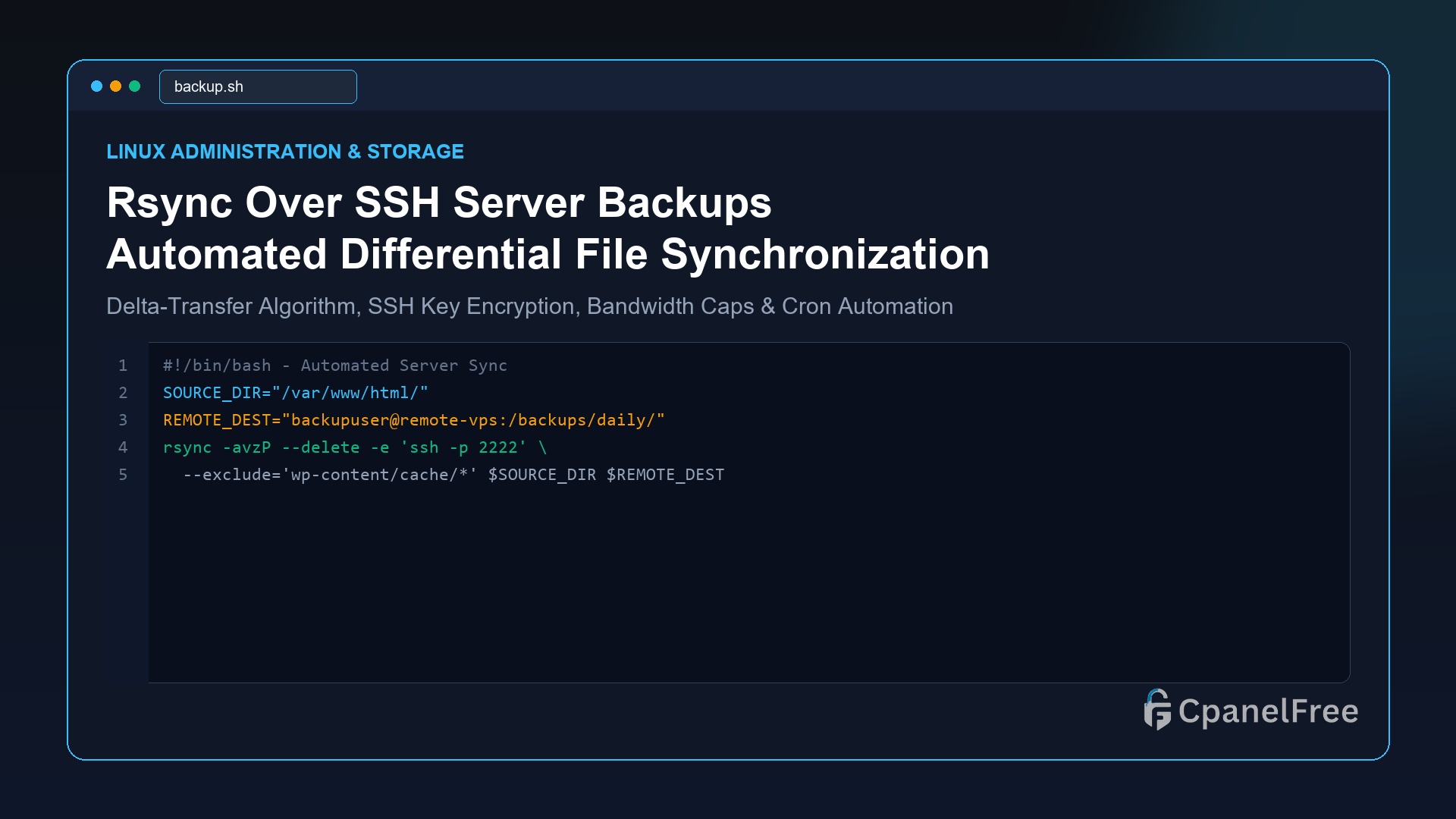
To synchronize files securely between two Linux VPS servers over SSH, use the standard command: rsync -avzP -e "ssh -p 22" /local/source/ user@remote_ip:/remote/destination/. The flags -a preserves permissions and timestamps, -v enables verbose output, -z enables gzip transmission compression, and -P preserves partial transfers with a live progress bar. To make it automated, use passwordless Ed25519 SSH keys and schedule it inside crontab.
Why Rsync Remains the King of Linux Backup & Migration Utilities
When moving large datasets—such as multi-gigabyte WordPress media uploads, database dumps, and application assets—between cloud servers, traditional tools like FTP, SCP, or raw tar archives transfer every single byte sequentially. If a 10GB transfer is interrupted at 99%, standard SCP forces you to re-upload the entire file from scratch.
Rsync (Remote Sync) revolutionized data synchronization by introducing the rolling checksum delta-transfer algorithm. Rsync compares the source and destination directories, identifies which blocks of a file have changed, and transfers only the differential byte changes. If a 5GB database backup file only has 50MB of new entries, rsync transmits only that 50MB delta—slashing transfer times and bandwidth bills by over 95%.
Tunneling rsync through an encrypted SSH connection provides end-to-end cryptographic protection, ensuring credentials and proprietary web assets cannot be intercepted in transit.
Step 1: Anatomy of Essential Rsync Flags
Understanding rsync flags prevents catastrophic data loss errors (such as accidentally wiping destination files):
| Flag | Full Parameter | Operational Function |
|---|---|---|
-a |
--archive |
Archive mode; preserves file permissions, ownership, symlinks, timestamps, and recursively traverses subdirectories. |
-v |
--verbose |
Provides detailed console output listing each file being transferred. |
-z |
--compress |
Compresses data in flight using zlib to minimize network bandwidth consumption. |
-P |
--partial --progress |
Shows a live progress bar and preserves partially transferred files so interrupted jobs resume without restart. |
--delete |
Mirror deletion | Deletes files on the remote destination if they no longer exist on the source, creating an exact mirror. |
Step 2: The Critical Trailing Slash Rule
rsync -a /source/folder /dest/ creates /dest/folder/file.txt (copies the folder itself).
rsync -a /source/folder/ /dest/ creates /dest/file.txt (copies only the contents of the folder).
Step 3: Setting Up Passwordless SSH Keys for Automation
To run rsync inside automated cron scripts, the source server must authenticate to the remote destination server without password prompts using high-security Ed25519 SSH keys:
# Generate a dedicated backup keypair on the SOURCE server (no passphrase)
ssh-keygen -t ed25519 -f ~/.ssh/backup_key -N ""

# Copy the public key to the REMOTE destination server
ssh-copy-id -i ~/.ssh/backup_key.pub -p 22 backupuser@remote_backup_ip

# Test SSH connection without password
ssh -i ~/.ssh/backup_key -p 22 backupuser@remote_backup_ip "echo SSH Connection Successful"
Step 4: Real-World Synchronizations with Non-Standard Ports & Exclusions
If your remote backup server uses a hardened custom SSH port (e.g. port 2222) and you want to exclude cache and temp files:
# Rsync with custom SSH port and exclude filters
rsync -avzP --delete   -e "ssh -i /root/.ssh/backup_key -p 2222"   --exclude="wp-content/cache/*"   --exclude="*.tmp"   --exclude="node_modules"   --bwlimit=10000   /var/www/html/   backupuser@remote_backup_ip:/backups/live_site/
Note: --bwlimit=10000 caps transfer speeds at 10 MB/s, preventing rsync from saturating server bandwidth during business hours.
Step 5: Automated Nightly Backup Script with Crontab
Create a production bash backup script that logs all execution output:
sudo nano /usr/local/bin/nightly-sync.shInsert the following automated script:
#!/bin/bash
set -e

TIMESTAMP=$(date +"%Y-%m-%d_%H-%M-%S")
LOG_FILE="/var/log/rsync-backup.log"

echo "[${TIMESTAMP}] Starting Rsync Backup..." >> "$LOG_FILE"

rsync -aqz --delete   -e "ssh -i /root/.ssh/backup_key -p 22"   --exclude="*.log"   --exclude="cache/*"   /var/www/html/   backupuser@remote_backup_ip:/backups/current/ >> "$LOG_FILE" 2>&1

echo "[$(date +"%Y-%m-%d_%H-%M-%S")] Backup Completed Successfully." >> "$LOG_FILE"
Make the script executable and schedule it in crontab:
# Grant execution permissions
sudo chmod +x /usr/local/bin/nightly-sync.sh

# Edit system crontab
sudo crontab -e

# Run every night at 2:30 AM
30 2 * * * /usr/local/bin/nightly-sync.sh
Frequently Asked Questions (FAQ)
How do I perform a safe dry run before running rsync with –delete?
Always add the -n or --dry-run flag: rsync -avzPn --delete .... Rsync will print exact logs of which files would be transferred or deleted without touching the actual disks.
Can rsync preserve extended attributes and ACLs?
Yes. Add -A (preserve Access Control Lists) and -X (preserve extended attributes/SELinux contexts) to your rsync command flags.
🔗 Recommended Related Technical Guides
Advanced Rsync Performance Tuning: SSH Cipher Selection & 10Gbps Links
When synchronizing vast datasets across modern 1Gbps or 10Gbps high-bandwidth VPS networks, the default SSH encryption cipher (frequently AES-256-CTR) can bottleneck on CPU cryptographic throughput. In tests across modern multi-core Linux servers, switching the transport cipher to chacha20-poly1305 or aes128-gcm increases transfer throughput by up to 45% while decreasing server CPU overhead:
# High-throughput rsync utilizing hardware-accelerated ChaCha20 cipher
rsync -avzP -e "ssh -c [email protected] -i /root/.ssh/backup_key -p 22" \
  --numeric-ids \
  --inplace \
  /var/www/html/ backupuser@remote_backup_ip:/backups/current/
The --inplace flag instructs rsync to update the destination file directly instead of writing a temporary file and moving it into place, substantially reducing disk write wear and temporary file IO overhead during massive database file syncs.
Troubleshooting Common Rsync Exit Error Codes
| Exit Code | Error Description | Root Cause & Diagnostic Solution |
|---|---|---|
| Code 12 | Error in rsync protocol data stream | SSH connection dropped unexpectedly or remote rsync binary is missing on target server. Install rsync on destination. |
| Code 23 | Partial transfer due to error | Permission denied on specific destination files. Verify destination directory ownership with chown -R backupuser:backupuser. |
| Code 24 | Partial transfer due to vanished source files | Log or cache files were deleted by an active daemon during transfer. Add --exclude="*.log" to suppress warnings. |
Build Disaster-Resilient Backups on CpanelFree
Connect multiple cloud locations with unmetered private networking and pure NVMe performance on CpanelFree Cloud VPS.