
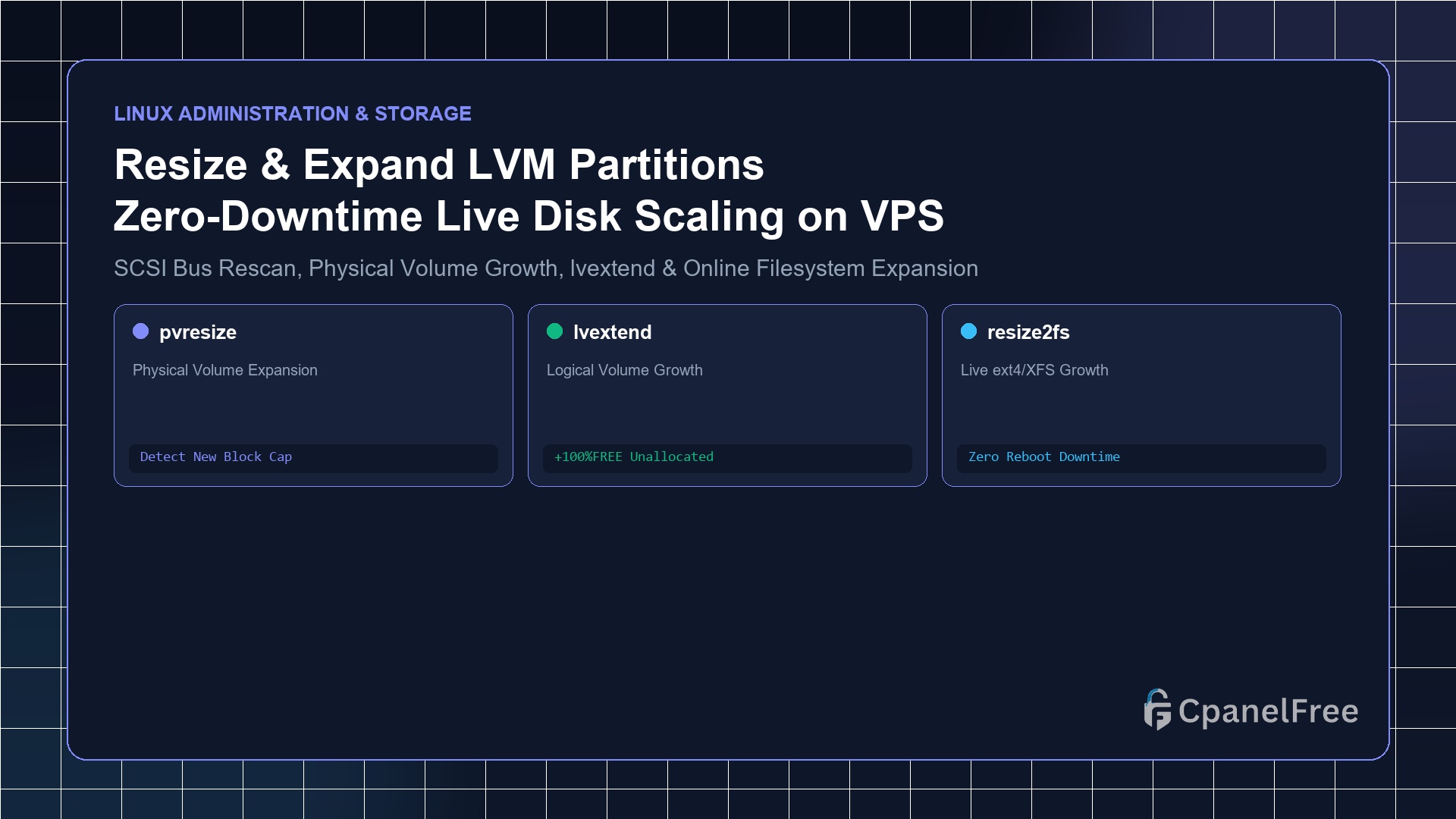
To expand an LVM partition on a running Linux VPS without rebooting: First, rescanning the SCSI block device using echo 1 | sudo tee /sys/class/block/sdX/device/rescan. If using a partition table, expand it with sudo growpart /dev/sdX 3. Then, expand the Physical Volume with sudo pvresize /dev/sdX3. Next, extend the Logical Volume to fill all available space using sudo lvextend -l +100%FREE /dev/ubuntu-vg/ubuntu-lv. Finally, expand the filesystem live: sudo resize2fs /dev/ubuntu-vg/ubuntu-lv (for ext4) or sudo xfs_growfs / (for XFS).
The Power of Logical Volume Manager (LVM) for Cloud Infrastructure
When upgrading cloud VPS hosting plans to acquire more disk space, traditional standard partition schemes (such as MBR or raw GPT tables) historically required booting into a live rescue ISO, unmounting the root partition, running gparted, and hoping file system structures remained intact.
Logical Volume Management (LVM) abstracts physical hard drives into a dynamic, pooled storage architecture. In LVM:
- Physical Volumes (PV) represent raw storage devices or partitions (e.g.
/dev/sda3). - Volume Groups (VG) pool physical volumes into a shared storage allocation pool (e.g.
ubuntu-vg). - Logical Volumes (LV) carve out virtual block slices from the pool and host your actual formatted file systems (e.g.
/dev/ubuntu-vg/ubuntu-lvmounted on/).
With LVM, expanding your server’s root storage after purchasing additional disk capacity takes less than 60 seconds from the command line—with 100% live uptime and zero reboot required.
Step 1: Inspecting Current Disk & LVM Architecture
Begin by verifying your current disk hierarchy and identifying whether your filesystem is formatted as ext4 or XFS:
# Inspect block device hierarchy and mount points
lsblk

# Check filesystem type on root partition
df -Th /

# Display current LVM allocations
sudo pvs
sudo vgs
sudo lvs
Step 2: Rescanning the Virtual SCSI Controller
After resizing your disk in the cloud hosting provider’s dashboard (e.g. expanding from 25GB to 50GB), the Linux kernel must be signaled to re-read the SCSI hardware geometry without rebooting:
# Rescan the primary SCSI drive (replace sda with your drive name)
echo 1 | sudo tee /sys/class/block/sda/device/rescan

# Verify the kernel detected the new physical capacity
sudo dmesg | tail -n 10
lsblk /dev/sda
Step 3: Expanding the Partition Table with growpart
If your Physical Volume resides inside a partitioned disk slice (e.g. /dev/sda3), the partition boundary must be updated to encompass the newly appended disk blocks:
# Install cloud-guest-utils to acquire growpart utility
sudo apt update && sudo apt install -y cloud-guest-utils

# Expand partition 3 on device /dev/sda (note the space between device and partition number)
sudo growpart /dev/sda 3

# Verify the partition grew
lsblk /dev/sda
Step 4: Resizing Physical Volume & Extending Logical Volume
Now instruct LVM to acknowledge the expanded partition and allocate the newly available extents directly to your logical volume:
# 1. Resize Physical Volume to consume full partition space
sudo pvresize /dev/sda3

# 2. Verify free space inside the Volume Group
sudo vgs

# 3. Extend the Logical Volume to allocate 100% of unassigned space
sudo lvextend -l +100%FREE /dev/ubuntu-vg/ubuntu-lv
Step 5: Expanding the Filesystem Online (Zero Downtime)
Extending the logical volume provides raw block capacity, but your operating system’s filesystem must expand its inode and block allocation tables. Choose the command corresponding to your filesystem format:
For ext4 Filesystems:
# Expand ext4 filesystem live while mounted
sudo resize2fs /dev/ubuntu-vg/ubuntu-lv
For XFS Filesystems:
# Expand XFS filesystem live (target must be the MOUNT POINT, not device)
sudo xfs_growfs /
Step 6: Verification of Successful Online Expansion
Verify that your root partition reflects the expanded capacity immediately:
df -h /You will observe your available space increased instantly without dropping a single active HTTP connection, database query, or background process.
Pro Sysadmin Tip: Never Shrink XFS Filesystems
While ext4 filesystems support both expansion and offline shrinking, XFS is an append-only allocation filesystem that fundamentally does not support shrinking. Attempting to reduce an XFS partition will cause unrecoverable data loss. Always allocate space incrementally.
Frequently Asked Questions (FAQ)
Does expanding an LVM partition cause data loss?
No. pvresize, lvextend, and online filesystem tools like resize2fs are non-destructive operations engineered specifically for live cloud servers. However, taking a snapshot backup before altering partitions is always recommended best practice.
Why does growpart give “NOCHANGE: partition 3 is size… cannot be grown”?
This means the Linux kernel has not yet acknowledged the new physical disk capacity from the hypervisor. Ensure you executed the SCSI rescan command: echo 1 | sudo tee /sys/class/block/sda/device/rescan first.
🔗 Recommended Related Technical Guides
Scale Storage Effortlessly on CpanelFree Cloud VPS
Instantly expand disk partitions, RAM, and compute cores on the fly with zero migration downtime on CpanelFree infrastructure.