
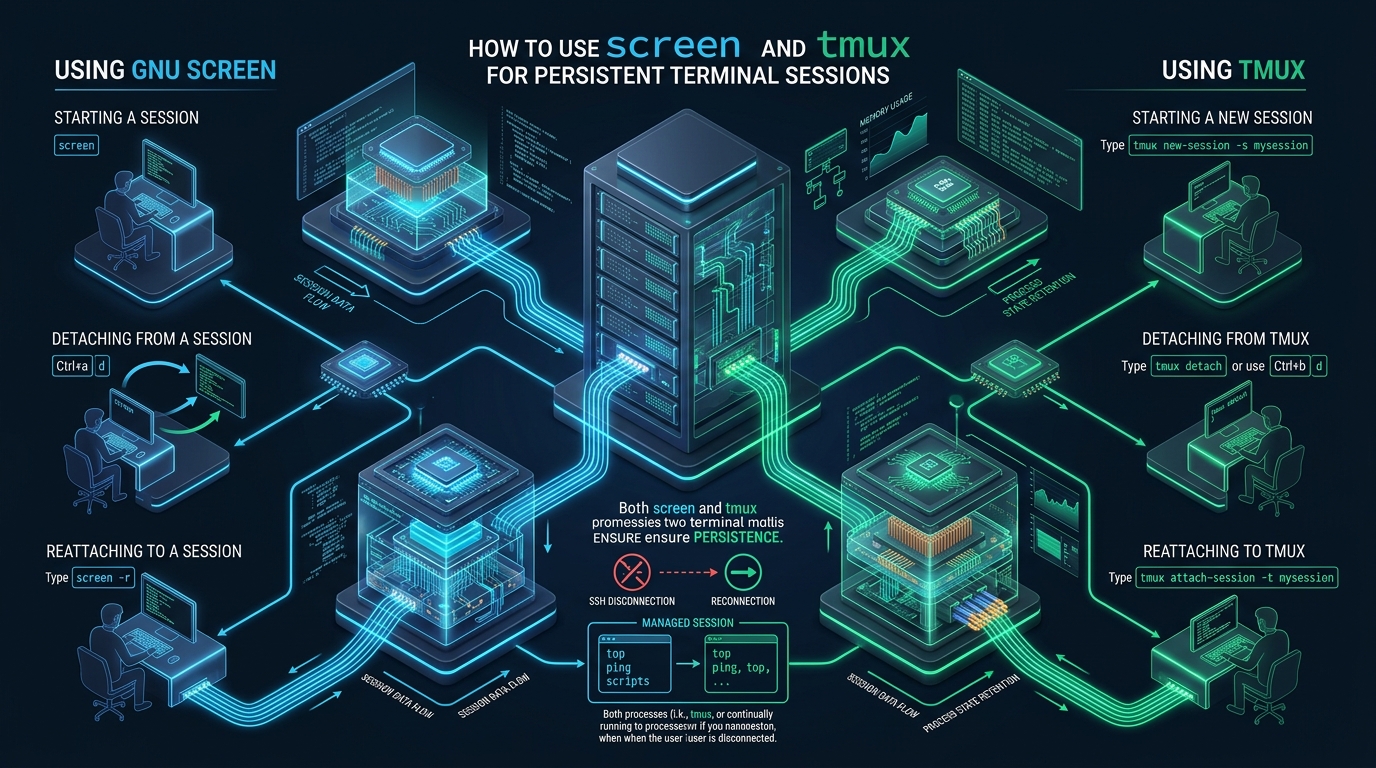
When managing mission-critical Linux servers over remote SSH connections, sudden network dropouts, intermittent VPN resets, and client-side laptop sleep states frequently trigger abrupt terminal disconnects. Without session persistence, the kernel sends a Hangup signal (SIGHUP) down the process hierarchy, instantly terminating running database migrations, compiling kernels, and unattended backup routines. By leveraging resilient terminal multiplexers and staging production sandboxes on CpanelFree, system administrators can completely isolate long-running workloads from fragile transport layers and maintain uninterrupted execution states.
Executive Technical Summary: Terminal Multiplexing Architecture
To understand the necessity of tools like GNU Screen and tmux, one must examine the Linux pseudoterminal subsystem. When an SSH client authenticates to an OpenSSH daemon, the server allocates a pseudoterminal pair consisting of a master device managed by sshd and a slave device (e.g., /dev/pts/3) assigned to your login shell. The login shell acts as the process group leader. If the underlying TCP socket collapses, sshd closes the master file descriptor, and the kernel immediately transmits SIGHUP to all member processes in the foreground and background job control tables.
Architecture Note: Terminal multiplexers intercept this termination chain by instantiating an intermediate daemon process that holds the master file descriptor open indefinitely. The multiplexer connects child processes to virtualized slave PTYs, isolating your running binaries from the lifecycle of your remote SSH client.
GNU Screen: Fundamental Concepts, Commands, and Lifecycle
GNU Screen is the grandfather of terminal multiplexers, introduced in 1987. It provides rock-solid reliability across legacy and modern POSIX distributions. Because Screen is either pre-installed or present in virtually every base package repository (from RHEL and Debian to Alpine and BusyBox), it remains an essential tool in emergency recovery environments.
Core GNU Screen Operational Commands
- Initialize a Named Session:
screen -S backup_job— Avoid anonymous sessions to simplify subsequent socket identification. - List Active Sockets:
screen -ls— Displays running sessions along with their process identifiers (PIDs) and attachment states (Attached vs. Detached). - Detach Cleanly: Press Ctrl+A followed by d. The session drops to the background while your scripts continue executing.
- Reattach to a Session:
screen -r backup_job— Restores the terminal display to the specified session. - Forcefully Detach and Reattach:
screen -d -r backup_job— Recovers a session that remained marked as “Attached” due to a sudden network severance. - Wipe Stale Sockets:
screen -wipe— Cleans up dead socket files in/run/screen/or/tmp/screens/if a process crashed.
Multi-Window Management Within GNU Screen
Inside a running Screen instance, you can spawn multiple concurrent virtual shells without creating secondary SSH sessions. GNU Screen uses the default command prefix Ctrl+A:
- Ctrl+A then c: Create a new virtual terminal window.
- Ctrl+A then n / p: Cycle to the next or previous virtual window.
- Ctrl+A then ": Present an interactive list of all open windows for fast switching.
- Ctrl+A then A: Rename the current window title for better operational clarity.
- Ctrl+A then [: Enter copy/scrollback mode (navigate with vi keys or arrow keys; press Esc to exit).
tmux: The Modern Client-Server Terminal Multiplexer
tmux (terminal multiplexer) was engineered as a modern, clean-slate replacement for GNU Screen. Operating on a strict client-server daemon topology, a single central tmux server process manages multiple sessions, windows, and split panes simultaneously. Clients attach to the server over a dedicated UNIX domain socket located at /tmp/tmux-<UID>/default.
Essential tmux CLI Commands
- Spawn New Session:
tmux new-session -s cluster_monitor— Establishes a session named cluster_monitor. - Inspect Running Sessions:
tmux ls— Enumerates all active sessions, showing window counts, creation timestamps, and attachment status. - Attach to Target Session:
tmux attach-session -t cluster_monitor— Connects the active terminal to the specified session. - Detach from Shell: Run
tmux detachor press Ctrl+B followed by d. - Kill Specific Session:
tmux kill-session -t cluster_monitor— Gracefully sends SIGHUP to the session processes and frees allocated buffers. - Terminate All Sessions:
tmux kill-server— Shuts down the tmux daemon entirely.
Panes, Windows, and Interactive Navigation
Unlike Screen’s traditional full-screen window paradigm, tmux natively shines in complex multi-pane arrangements within a single window. All interactive commands use the default prefix Ctrl+B:
- Ctrl+B then %: Split the active window vertically into left and right panes.
- Ctrl+B then ": Split the active window horizontally into upper and lower panes.
- Ctrl+B then arrow keys: Navigate focus between adjacent panes.
- Ctrl+B then z: Toggle zoom on the current pane (expands to full screen; press again to restore pane grid).
- Ctrl+B then c: Create an entirely new full window.
- Ctrl+B then w: Open an interactive visual tree to preview and select sessions, windows, and panes.
Security Advisory: Because multiplexer sockets live in
/tmpor/run, file permissions must strictly prevent local unprivileged user snooping. Verify your umask ensures0700socket directory attributes so other local system users cannot attach to your interactive root or deployment sessions.
Architectural Matrix: tmux vs screen linux Benchmark
When choosing between tmux vs screen linux for enterprise infrastructure, systems architects must evaluate daemon topology, scripting extensibility, resource consumption, and dynamic configuration capabilities. The comparison matrix below outlines critical production metrics:
| Feature / Metric | Standard / Default | Tuned / Production |
|---|---|---|
| Process Architecture | GNU Screen (Isolated Monolithic Daemons) | tmux (Centralized Client-Server Daemon) |
| Configuration Reload | Restart Required (Screen) | Live Runtime Reload via IPC (tmux) |
| Pane Splitting Flexibility | Rudimentary regions (Screen) | Dynamic 2D Panes with Zoom & Resize |
| Headless Scriptability | Complex Stdio Injection (Screen) | Native Command-Line IPC API (tmux) |
| Memory Footprint per Session | ~2.8 MB (Screen) | ~4.1 MB (tmux Server + Sockets) |
| Scrollback Buffer Performance | 100 Lines Default | 50,000+ Lines Configurable in RAM |
| Multi-User Pair Programming | SUID root binary flags required (Screen) | UNIX Socket Group Permissions (tmux) |
| True Color & UTF-8 Support | Partial / Compile-dependent | Native 24-bit RGB True Color |
Production Configuration Files: Hardened tmux and Screen Profiles
Out-of-the-box multiplexer installations lack ergonomic navigation, modern color support, and adequate history buffers. Below are battle-tested, production-ready configuration files designed for enterprise infrastructure environments.
Enterprise ~/.tmux.conf Profile
This hardened configuration remaps the default prefix to Ctrl+A, enables vi navigation keys, expands the history buffer to 50,000 lines, removes Vim escape latency, enables true 24-bit color, and provides an informative system status bar:
# =============================================================================
# Enterprise ~/.tmux.conf - Production Hardened Profile
# =============================================================================

# 1. Prefix Rebinding (Ctrl+A ergonomic mapping)
unbind C-b
set -g prefix C-a
bind C-a send-prefix

# 2. Terminal Capabilities & True Color Support
set -g default-terminal "tmux-256color"
set -ag terminal-overrides ",xterm-256color:RGB"
set -s escape-time 0
set -g history-limit 50000
set -g display-time 4000
set -g status-interval 5

# 3. Base Indexing & Vi-Mode Navigation
set -g base-index 1
setw -g pane-base-index 1
setw -g mode-keys vi

# Vi-style Copy/Paste bindings
bind -T copy-mode-vi v send -X begin-selection
bind -T copy-mode-vi y send -X copy-pipe-and-cancel "xclip -in -selection clipboard"

# 4. Intuitive Pane Splitting (Opening in current working directory)
bind | split-window -h -c "#{pane_current_path}"
bind - split-window -v -c "#{pane_current_path}"
unbind '"'
unbind %

# Pane navigation using Vi keys
bind h select-pane -L
bind j select-pane -D
bind k select-pane -U
bind l select-pane -R

# 5. Live Configuration Reload
bind r source-file ~/.tmux.conf \; display-message "Configuration Reloaded!"

# 6. Status Bar Aesthetics (Dark Navy #001b41 & Crisp Light Elements)
set -g status-position bottom
set -g status-style "bg=#001b41,fg=#ffffff"
set -g status-left "#[bg=#20B038,fg=#ffffff,bold] #S #[bg=#001b41,fg=#ffffff] "
set -g status-right "#[fg=#e7e7e7]%Y-%m-%d %H:%M #[bg=#20B038,fg=#ffffff,bold] #H "
setw -g window-status-current-style "bg=#ffffff,fg=#001b41,bold"
setw -g window-status-current-format " #I:#W#F "
setw -g window-status-style "fg=#e7e7e7"
setw -g window-status-format " #I:#W "

# 7. Window Aggressive Resizing for Multi-Client Viewports
setw -g aggressive-resize on
Enterprise ~/.screenrc Profile
For legacy nodes or minimal containers where only GNU Screen is installed, deploy this optimized ~/.screenrc to eliminate startup splash delays, activate UTF-8 encoding, and establish a clear status bar:
# =============================================================================
# Enterprise ~/.screenrc - Production Hardened Profile
# =============================================================================

# Suppress annoying startup copyright banner
startup_message off

# Set terminal emulation and 256 color support
term screen-256color
defutf8 on

# Increase scrollback memory buffer (default 100 is insufficient)
defscrollback 30000

# Disable visual flashing bell
vbell off

# Ensure detaching kills child processes only when explicitly desired
autodetach on

# Informative Hardstatus Bar at bottom
hardstatus alwayslastline
hardstatus string '%{= kG}[ %{G}%H %{g}][%= %{= kw}%?%-Lw%?%{r}(%{W}%n*%f %t%?(%u)%?%{r})%{w}%?%+Lw%?%?%= %{g}][%{B} %m-%d %{W}%c %{g}]'
Automating Session Persistence with systemd Service Units
While tmux preserves sessions against SSH drops, it cannot survive a full operating system reboot on its own. For long-running ingestion workers, continuous build daemons, and microservices that require interactive debugging capabilities, wrapping tmux inside a parameterized systemd unit guarantees automatic boot-time initialization and crash recovery.
Deploy the following production unit file to /etc/systemd/system/[email protected]:
[Unit]
Description=Persistent tmux Headless Daemon for %I
After=network.target

[Service]
Type=forking
User=%I
KillMode=none
Restart=on-failure
ExecStart=/usr/bin/tmux -2 new-session -d -s auto_worker
ExecStop=/usr/bin/tmux kill-session -t auto_worker

[Install]
WantedBy=multi-user.target
Enable and start the service for your administrative user with standard systemctl controls:
sudo systemctl daemon-reload
sudo systemctl enable --now [email protected]
Once authenticated, the admin user can immediately attach to the daemonized session with tmux attach-session -t auto_worker.
Advanced DevOps Automation: Headless tmux Scripting
One of tmux’s greatest technical advantages over GNU Screen is its full programmatic control via standard shell scripts. DevOps automation pipelines can spin up standardized multi-service environments, inject environment variables, and stream diagnostic commands without human keystroke intervention:
#!/usr/bin/env bash
# deploy_stack_env.sh - Automated 3-pane DevOps environment
set -euo pipefail

SESSION_NAME="deploy_stack"

# Check if session exists
if tmux has-session -t "$SESSION_NAME" 2>/dev/null; then
  echo "Session $SESSION_NAME already active. Attaching..."
  tmux attach-session -t "$SESSION_NAME"
  exit 0
fi

# 1. Create headless detached session with first window named 'Engine'
tmux new-session -d -s "$SESSION_NAME" -n 'Engine'

# 2. Split window horizontally: top (70%), bottom (30%)
tmux split-window -v -p 30 -t "$SESSION_NAME:Engine"

# 3. Split bottom pane vertically into two equal halves
tmux split-window -h -p 50 -t "$SESSION_NAME:Engine.2"

# 4. Inject runtime commands into specific target panes
tmux send-keys -t "$SESSION_NAME:Engine.1" 'tail -f /var/log/nginx/access.log' C-m
tmux send-keys -t "$SESSION_NAME:Engine.2" 'journalctl -u php-fpm -f' C-m
tmux send-keys -t "$SESSION_NAME:Engine.3" 'htop' C-m

# 5. Attach user directly to the structured dashboard
tmux attach-session -t "$SESSION_NAME"
When deploying high-concurrency staging clusters and production environments, robust infrastructure makes all the difference. For mission-critical web applications requiring dedicated compute instances, low latency, and predictable operational overhead, pairing persistent terminal sessions with MeraHost Enterprise Cloud guarantees hardware-accelerated NVMe storage and zero renewal price markups.
Frequently Asked Questions
What happens to active background processes inside tmux or screen if the host server reboots?
Because both Screen and tmux maintain their session states in volatile host memory (RAM) and temporary UNIX sockets, an unscheduled operating system reboot terminates all child processes. To survive reboots, services must be orchestrated using systemd units or restored via tmux session checkpoint plugins such as tmux-resurrect and tmux-continuum.
In high-throughput environments, is tmux noticeably faster or lighter than GNU Screen?
GNU Screen has a slightly smaller base memory footprint (~2.8 MB vs ~4.1 MB), but tmux handles high-throughput terminal output significantly better due to its asynchronous libevent backend. Screen can encounter rendering stalls or buffer lag when applications emit millions of lines of raw log data per minute, whereas tmux safely truncates scrollback without freezing the controlling PTY.
How do two sysadmins securely share an active terminal multiplexer session for remote pair programming?
In tmux, both users can connect to the same UNIX socket if they belong to a shared system group. Create a dedicated socket with tmux -S /var/run/tmux-shared/collab new-session -s pair and set group read/write permissions (chmod 770). The second engineer joins by running tmux -S /var/run/tmux-shared/collab attach-session -t pair. In GNU Screen, multi-user mode requires setting the screen binary SUID root and executing multiuser on and acladd <username> within the command prompt.
Why does tmux or Screen restrict my terminal window size when another client is connected?
By default, terminal multiplexers constrain the virtual window size to the smallest connected client viewport to prevent text clipping. In tmux, adding setw -g aggressive-resize on to your ~/.tmux.conf ensures that windows are only constrained when two users view the exact same window simultaneously, freeing other windows to scale to each viewer’s native display dimensions.
Deploy Enterprise-Grade Production Infrastructure
Need guaranteed performance with zero price hikes? Host mission-critical workloads on MeraHost with pure Enterprise NVMe, LiteSpeed Web Server, and Same Renewal Price, Always (starting at ₹99/mo).